Wagnerguide collects both web visitor stats and mapping request history.
Analytics overview
Web visitors analytics
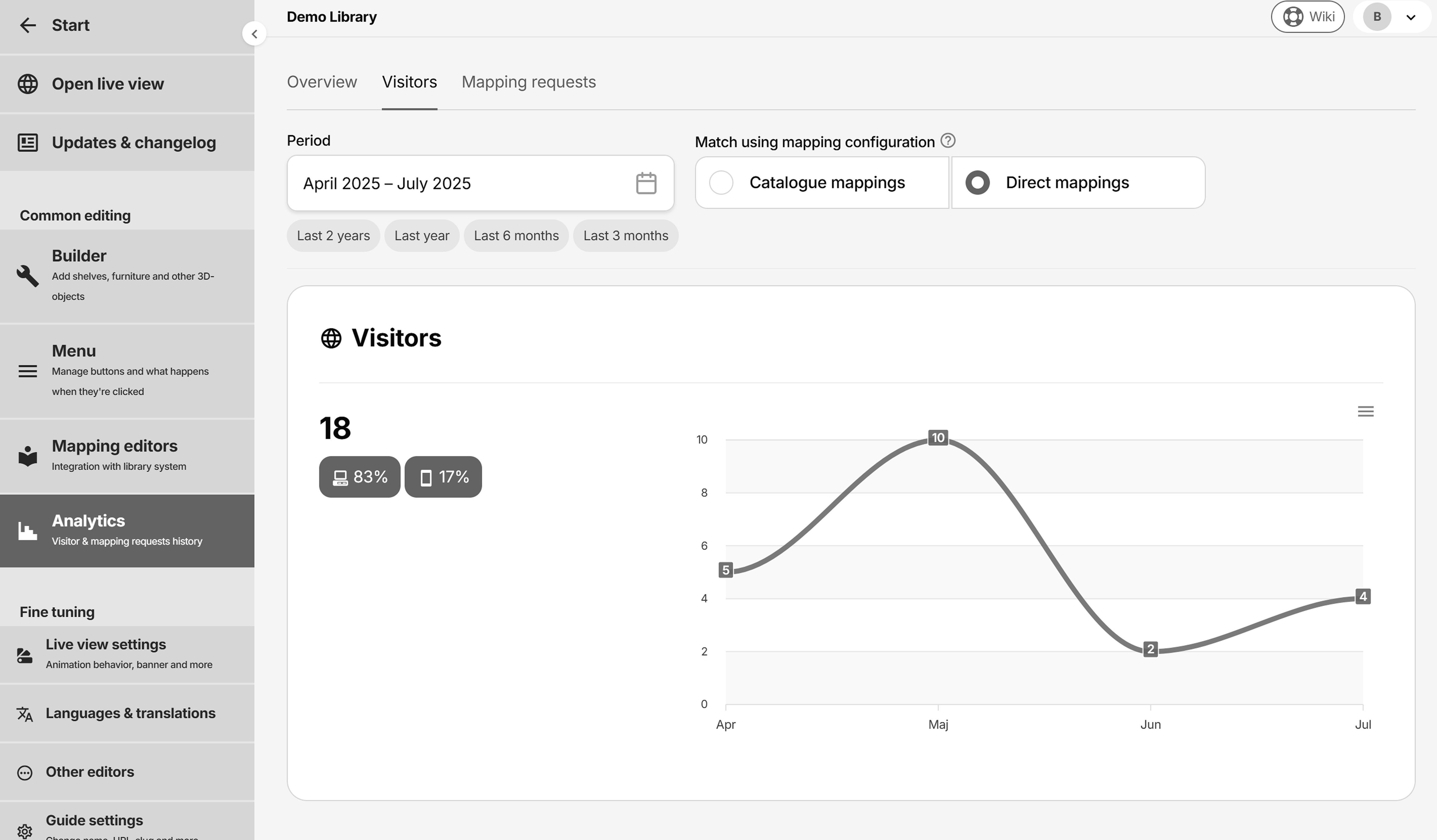
Displays unique visitor count and device used for the selected period:
Using your own Google analytics
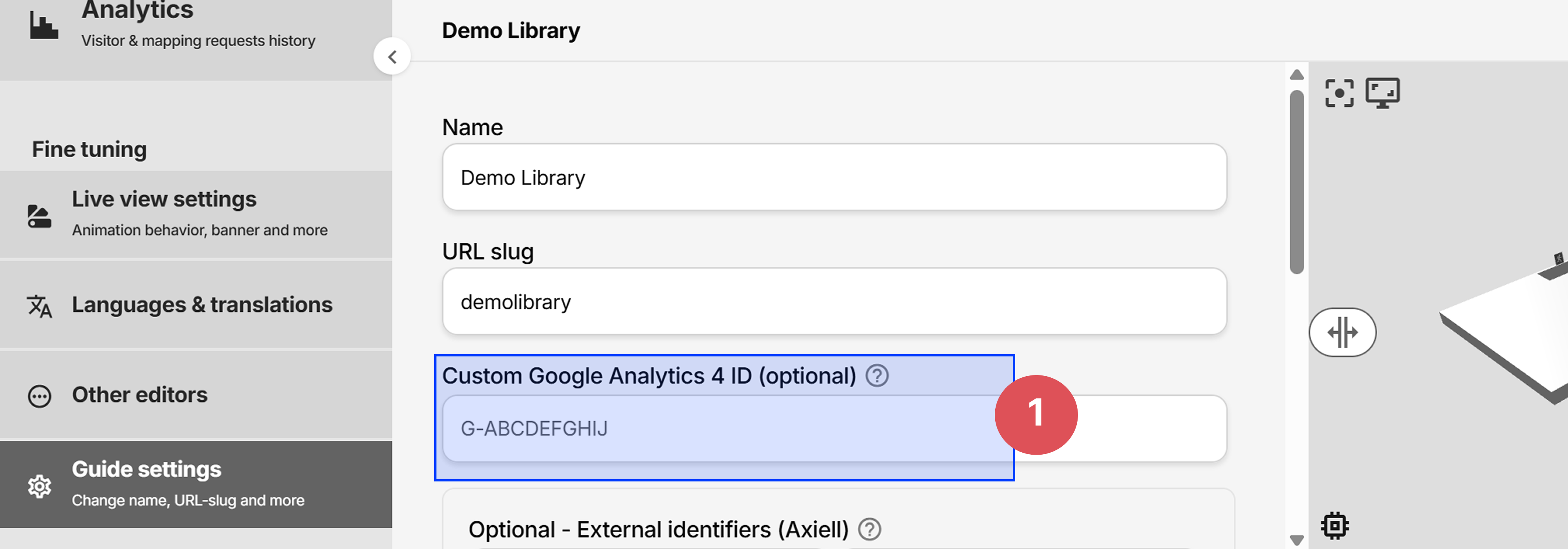
You may provide your own Google analytics by filling out the field Custom Google Analytics 4 ID under Guide settings. Wagnerguide still collects web visitor stats when is populated:
Mapping request analytics
Some displayed values are calculated by the current mapping setup, meaning, if the mappings were to be changed at this time, the stats change accordingly. I.e., the graphs does not display if each request was originally matched with, only what it would match with given the current setup.
Each mapping request is saved, no matter if they were matched with or not. The graphs and tables displays mapping request history for the selected period.
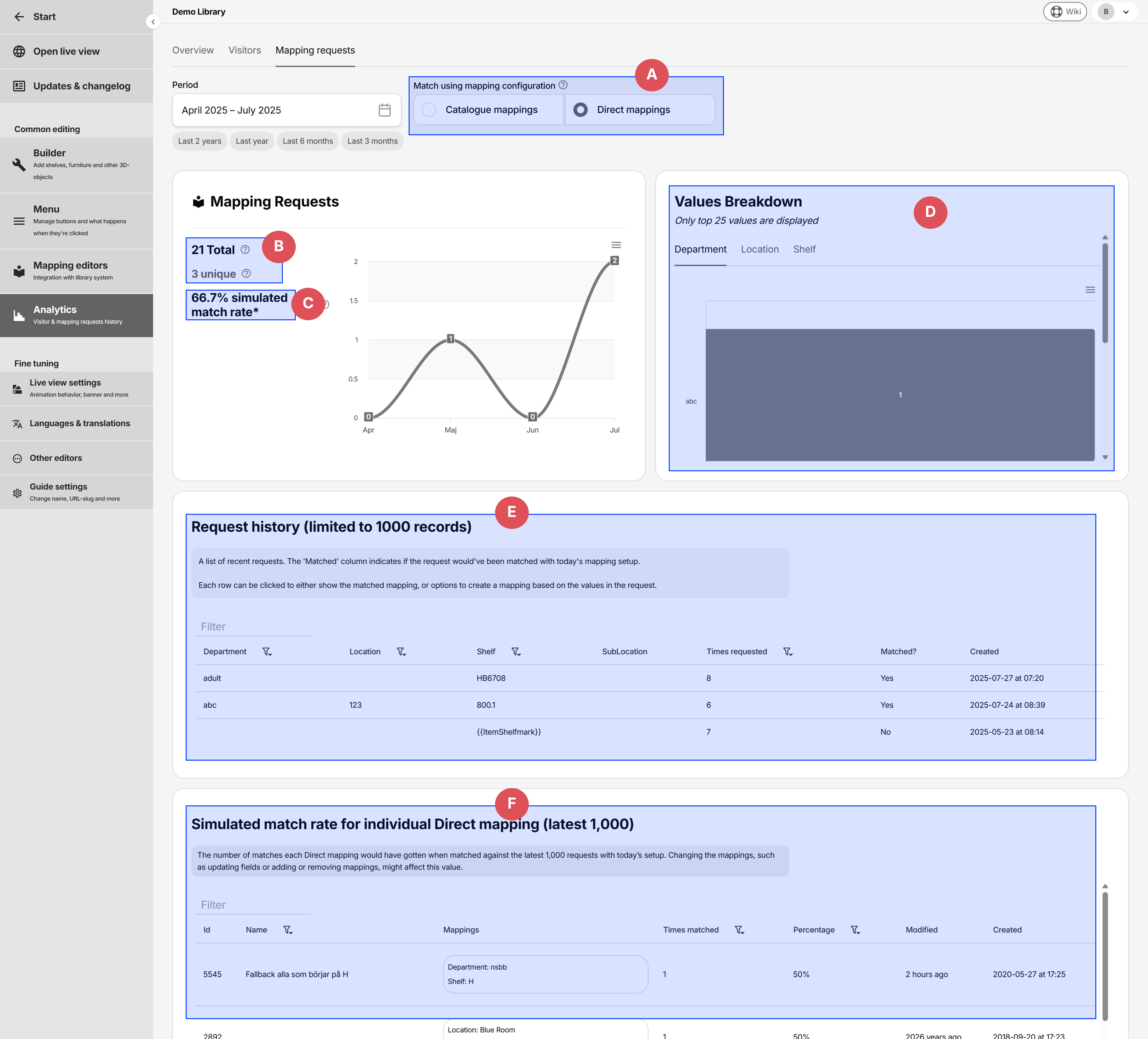
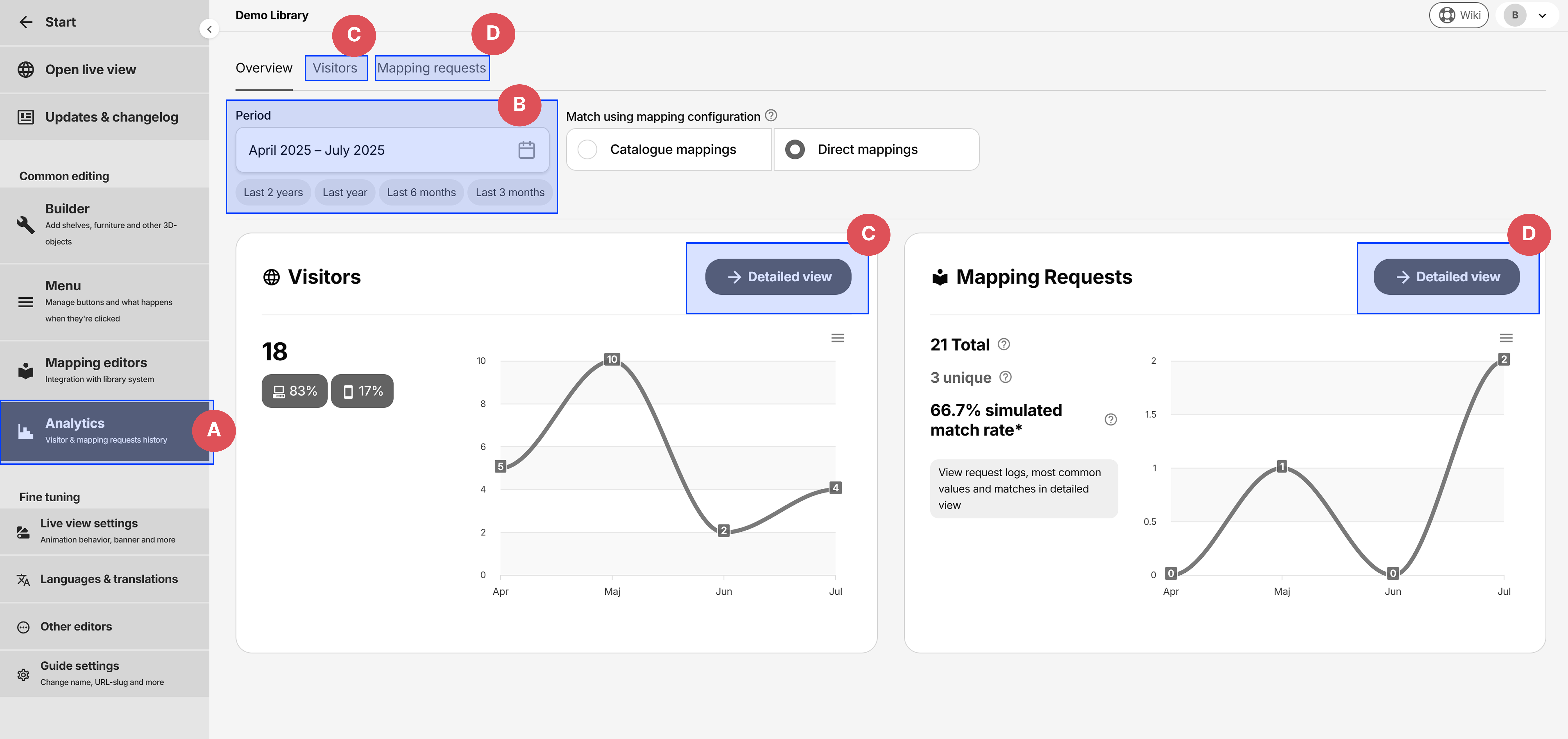
- A: Determines if either
Catalogue mappingsorDirect mappingsare used to calculate the simulated match rate percentage and match rate for individual mappings (figure C and F). Changing this only affects the analytics view, not the active mapping set for the guide. - B: Total requests and unique requests in the selected period. Unique means having the same combination of department+location+shelf+sublocation values.
- C: Simulated match rate, i.e.
how many of the requests were matched?, using a sample size of 1000 records. A value of 100% means all requests were matched with a mapping. - D: Displays the most common values for every value type within the selected period
- E: A list of the most recent requests within the selected period. Requests are uniquely listed, and the total request count is indicated by the
Times requestedcolumn - F: Displays all mappings within the selected mapping set (figure A) and how many times they would've been matched with given the current setup.
Request history table
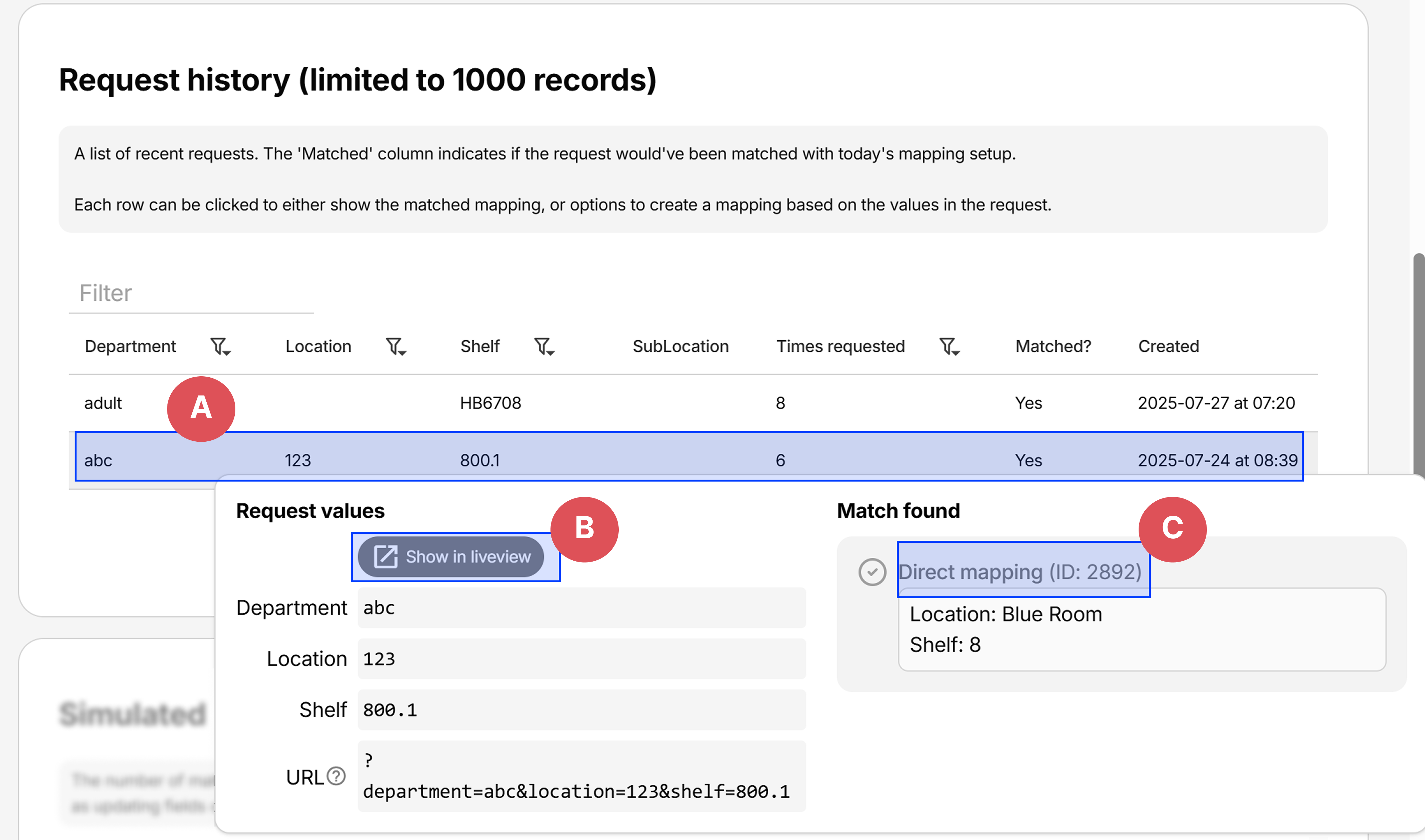
- A: Click on a row to display the popout window with more information
- B: Opens a new tab with the request values populated, identical to what it looked like originally. Request tracking is disabled when opening in new tab.
- C: A link to the matching mapping, or if no match is found, buttons to create a new mapping based on the values in the request.
Individual mapping table
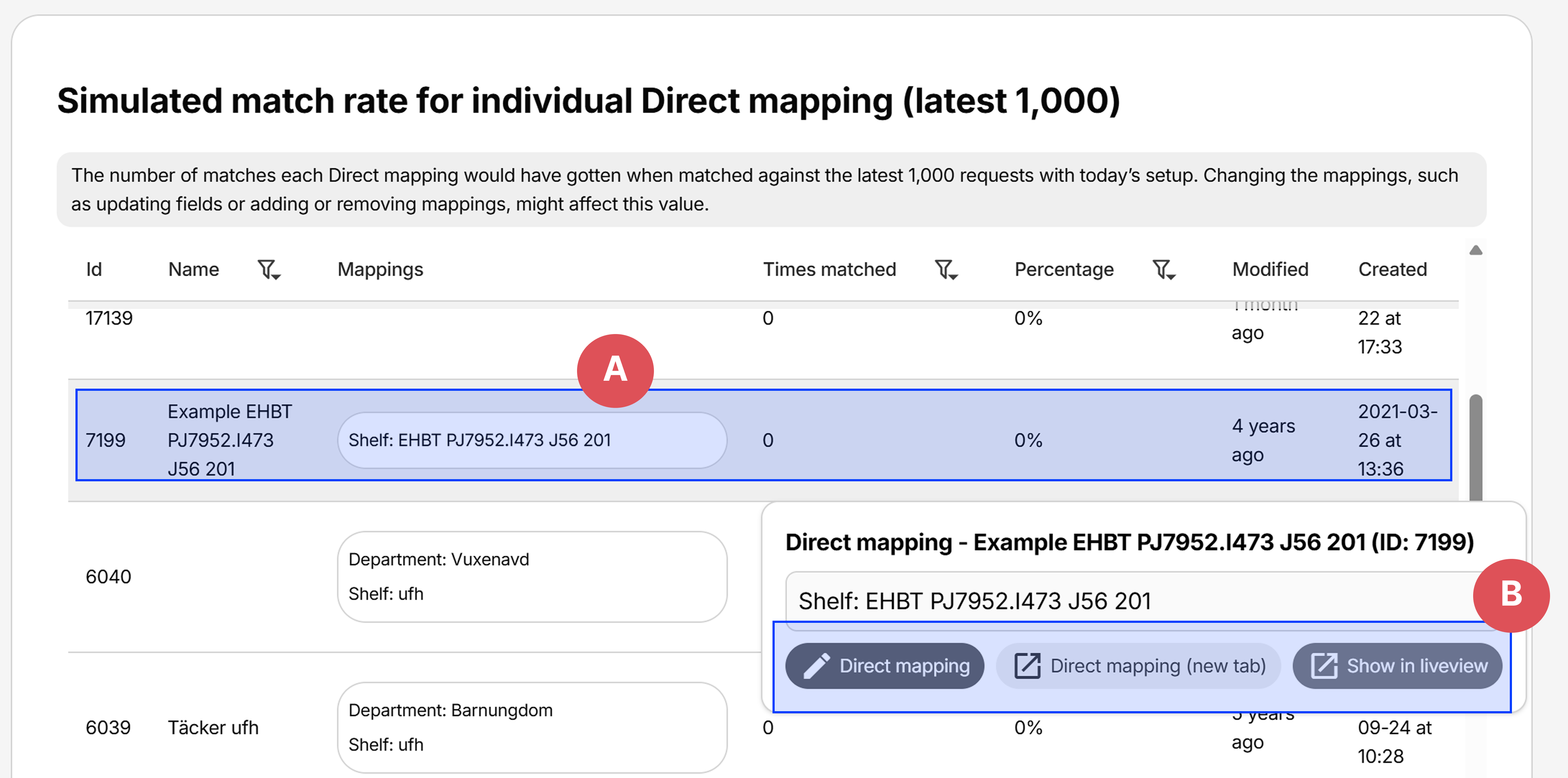
- A: Click on a row to display the popout window with more information
- B: Links for editing or previewing the mapping (same as clicking
Previewwhen editing a mapping) in liveview
Testing mappings
A mapping request simulation can be made against specific request values under the Test mapping values tab in Mapping editors. It can be used to answer inquiries such as What does the combination of a specific department and shelf value match? instead of having to locate different books in the library catalogue to test with.
It displays if a Catalogue mapping and Direct mapping match was found or not:
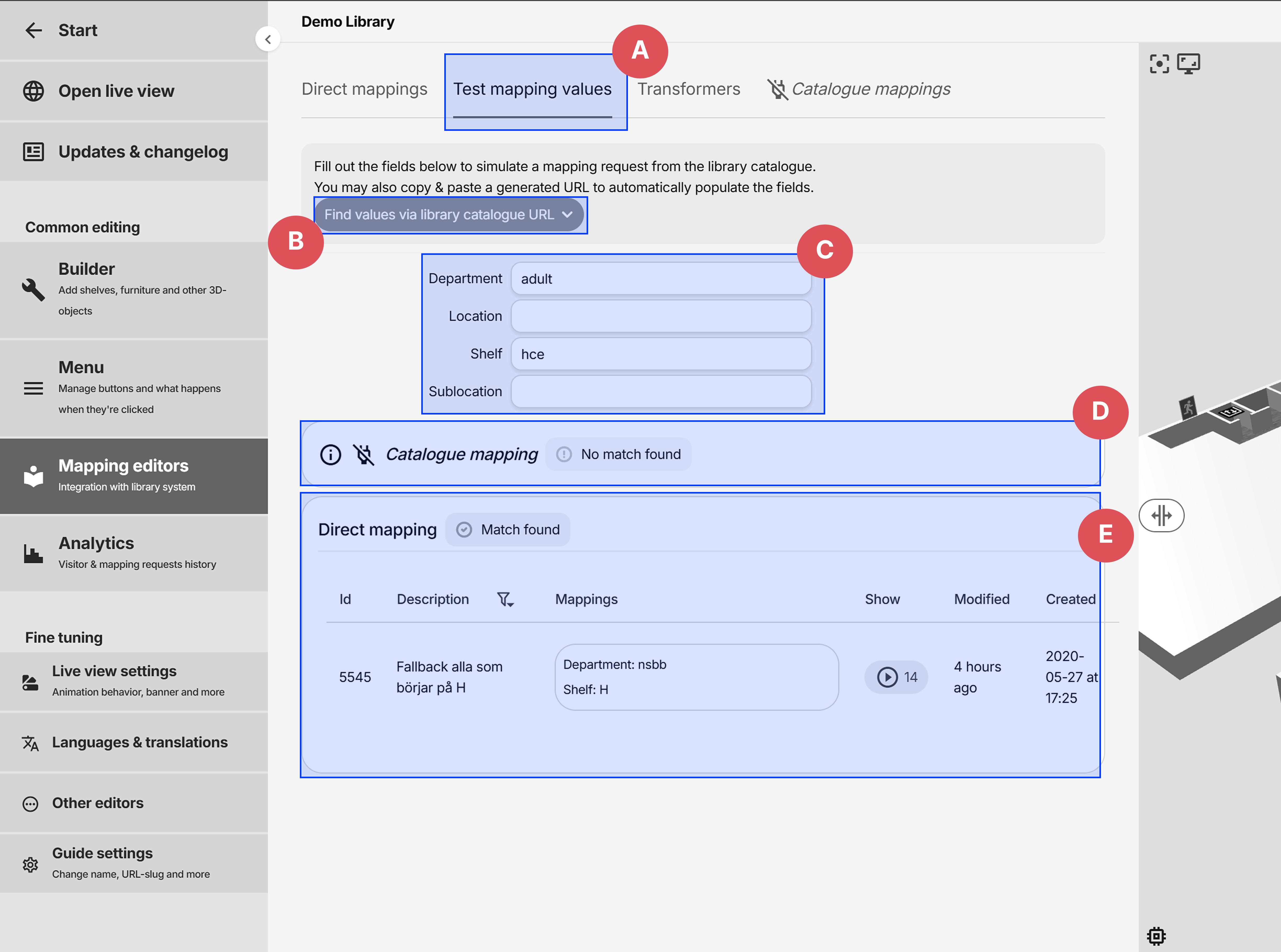
- A: Test mapping values tab
- B: Copy-paste a URL to automatically populate the request values (see Find values via URL)
- C: The request values to test against
- D: The matched Catalogue mapping
- E: The matched Direct mapping, the row can be clicked to edit the mapping
Find values via URL
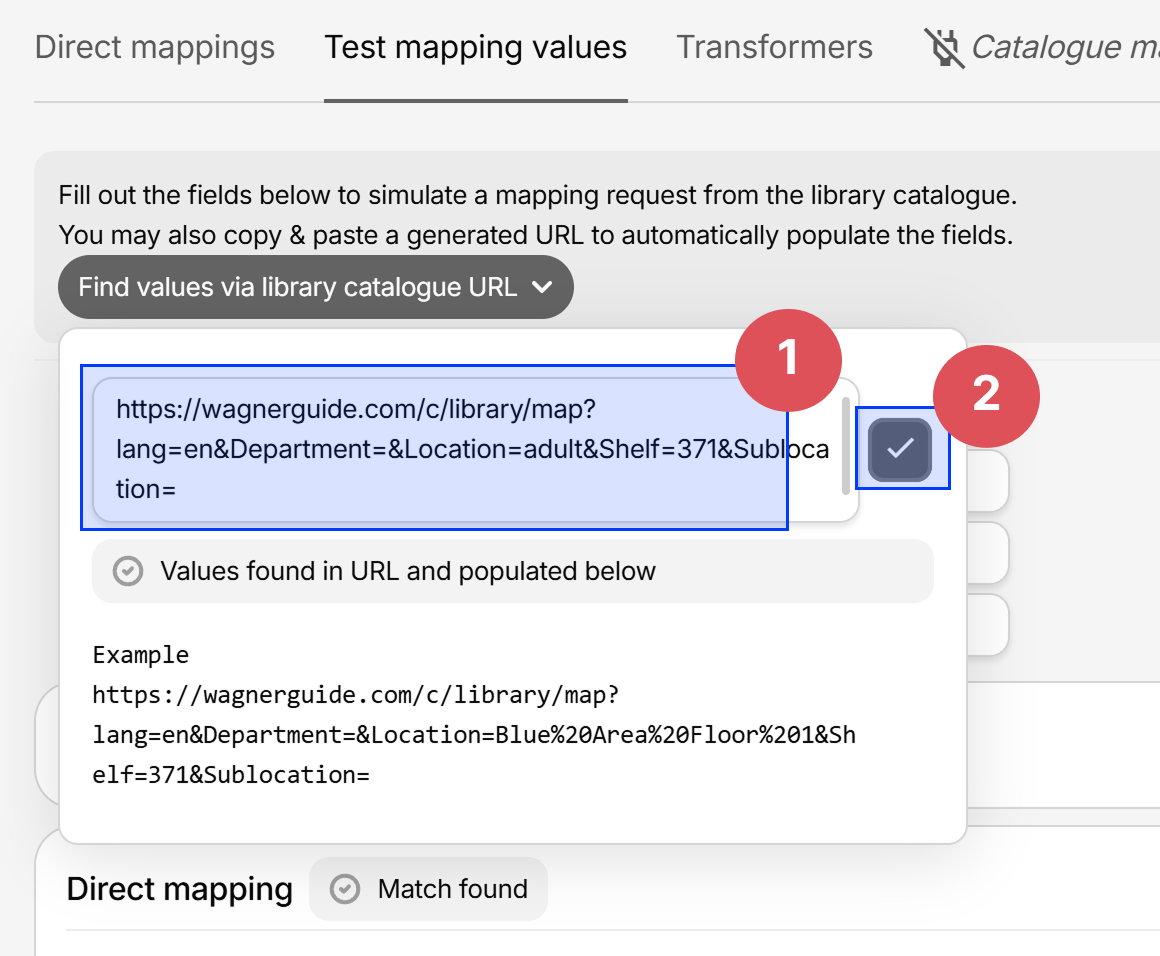
Instead of manually filling out the request values when testing, the values can be read automatically by pasting URLs containing the location information as query parameters, for example:
https://wagnerguide.com/c/library/map?lang=en&Department=&Location=adult&Shelf=371&Sublocation=
These can be accessed via
- Right click a generated
"Locate on map"link in your catalogue, and Copy link adress: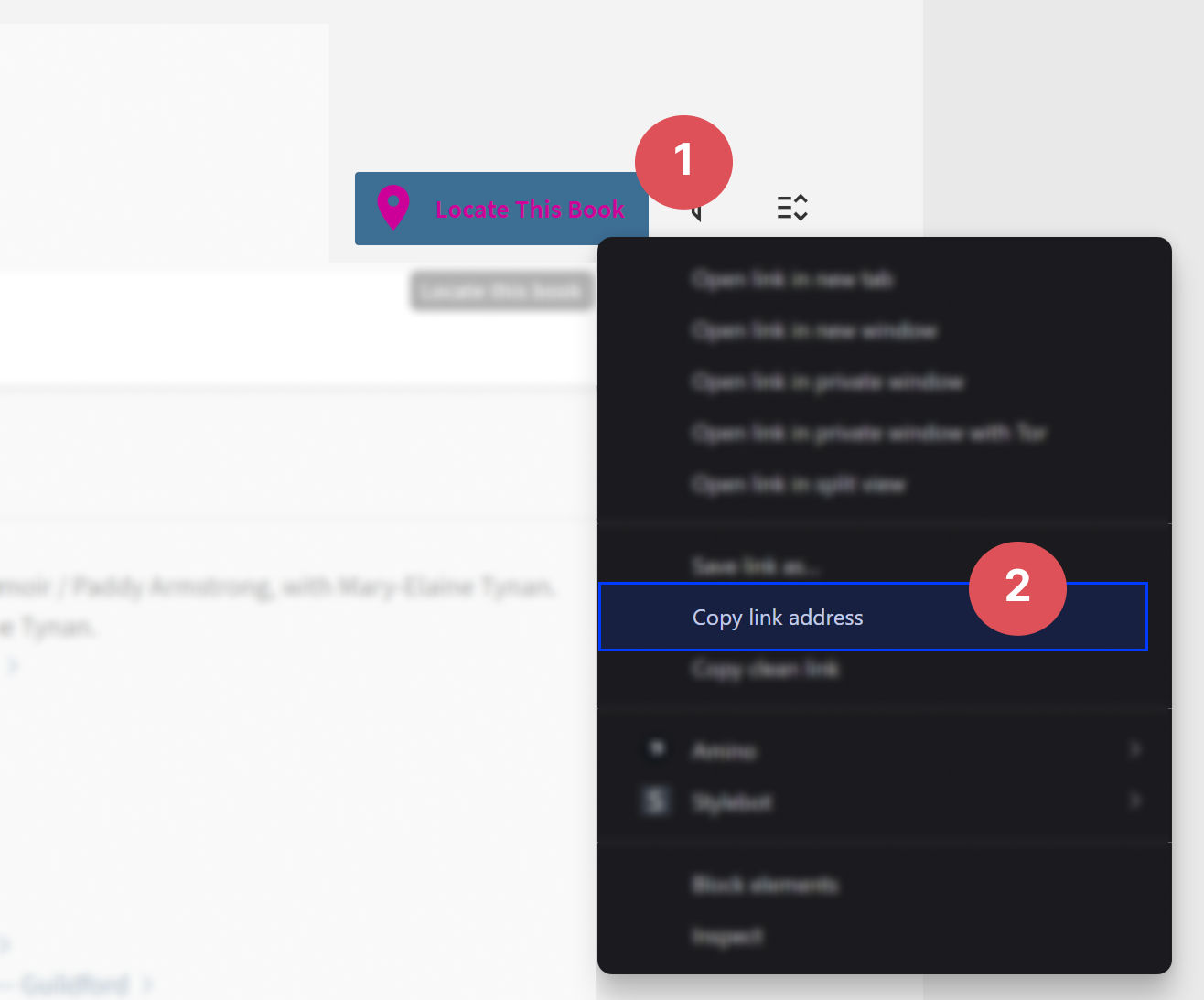
- Paste into the URL field and click the checkmark-button: