Using the 3D-view
3D-view
The 3D-view is automatically displayed or hidden when navigating in the admin area:
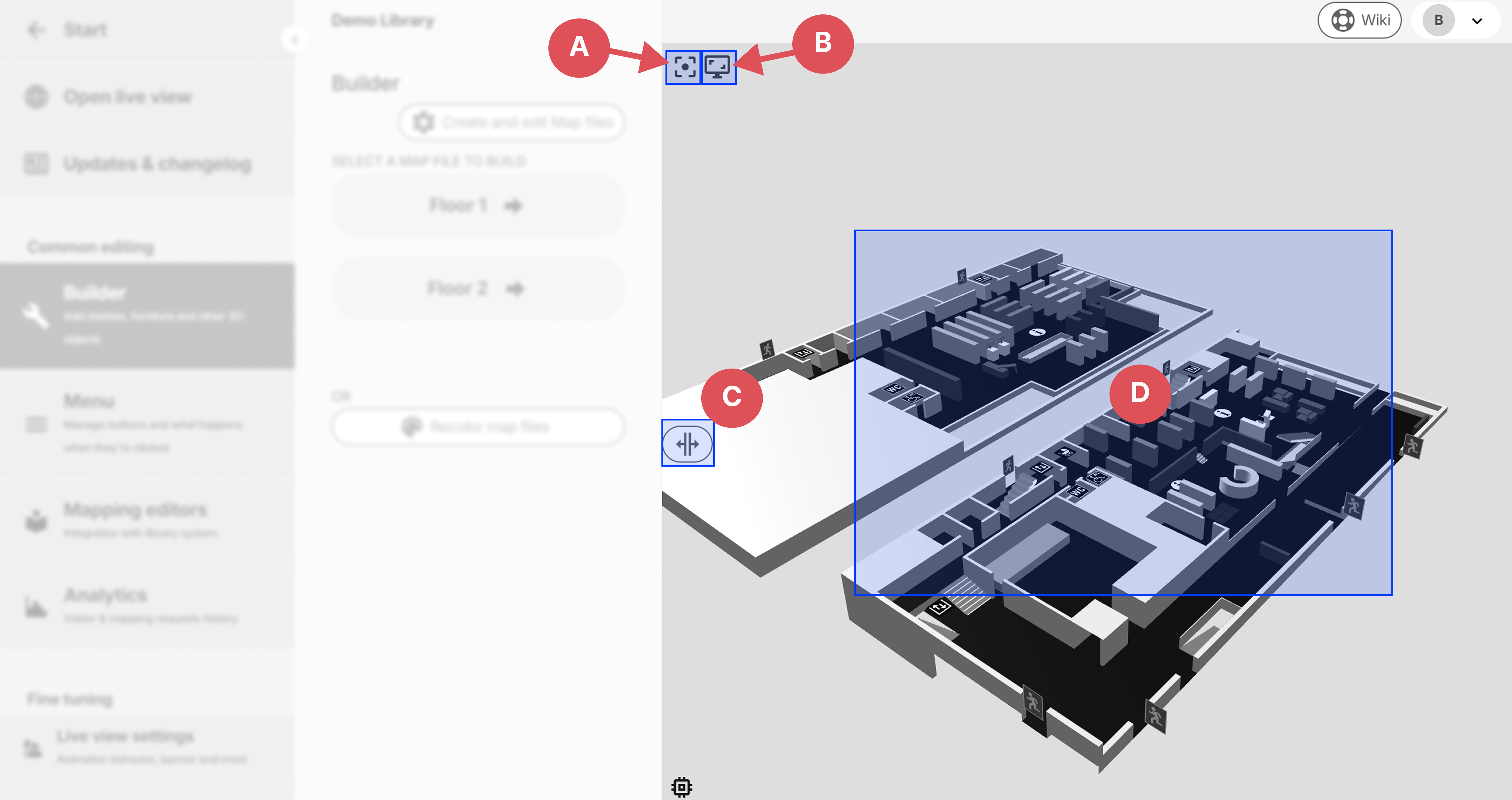
- A: Resets the camera, useful if nothing is visible in 3D or the camera has been zoomed in or out too much
- B: Takes a screenshot of the 3D view and downloads it as an image file
- C: Size of the 3D-view, clicking this will shrink or expand the element. The size will automatically change depending on the current page.
- D: Navigate (pan, rotate and zoom) in 3D-space by using the mouse. See below for more information:
Navigating 3D-space
Rotate
Hold down left mouse button and move the mouse to rotate the camera
Pan
Hold down right mouse button and move the mouse to pan, i.e. move sideways, up, or down.
Zoom
Zoom by scrolling the mouse wheel