Technical information/setup
Generate links in the catalogue posts
While each LMS/Discovery system implements the link generation differently, the links should start with your guide’s URL. This URL is available by clicking Open live view in the editing area:
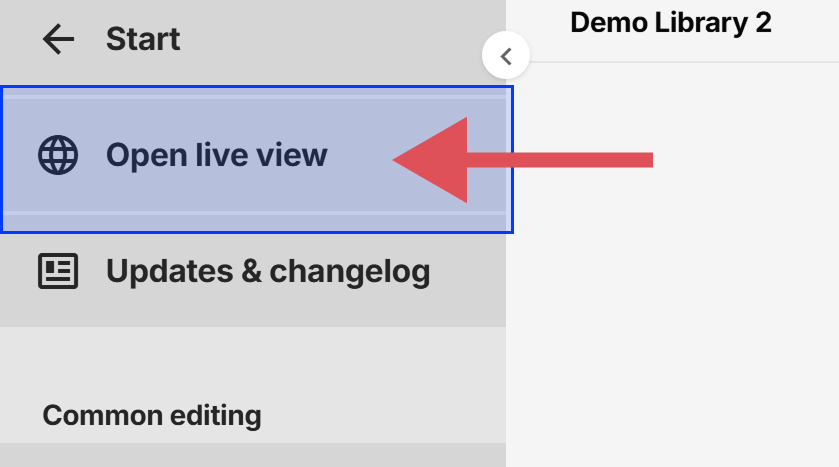 Example:
 https://wagnerguide.com/c/demo/demolibrary
URL structure
Use query parameters to append information to the URL. Depending on how the media is structured in the library, the amount of needed query parameters will vary. For example, if a shelf can be identified by only using Location and Shelf, Department is not needed.
The following keys can be used:
- department – the primary dividing value, such as department for adult or youth.
- location – sometimes used instead of Department.
- shelf – the dewey code or similar.
- sublocation - seldom used
- text – optional, adding a message element, usually the book's title
Full URL example: https://wagnerguide.com/c/demo/demolibrary?department=abc&location=123&shelf=800.1
Axiell Quria
If you're using Quria by Axiell, there may be two fields you enter the URL into.
Base URL - the unique URL to your guide, such as:
https://wagnerguide.com/c/demo/demolibrary
Second part - the information of the catalogue post:
?encoding=utf-8&unit_code={{UnitCode}}&locale={{Locale}}¶m0={{DepartmentCode}}¶m1={{SectionCode}}¶m2={{FirstCharacterAuthorOrTitle}}&shelf={{ItemShelfmark}}&text={{AuthorAndTitle}}
Example full Quria URL:
https://wagnerguide.com/c/demo/demolibrary?encoding=utf-8&unit_code={{UnitCode}}&locale={{Locale}}¶m0={{DepartmentCode}}¶m1={{SectionCode}}¶m2={{FirstCharacterAuthorOrTitle}}&shelf={{ItemShelfmark}}&text={{AuthorAndTitle}}