Live view settings
Customize the guide, such as theming via fonts and menu banner, animation settings, and more.
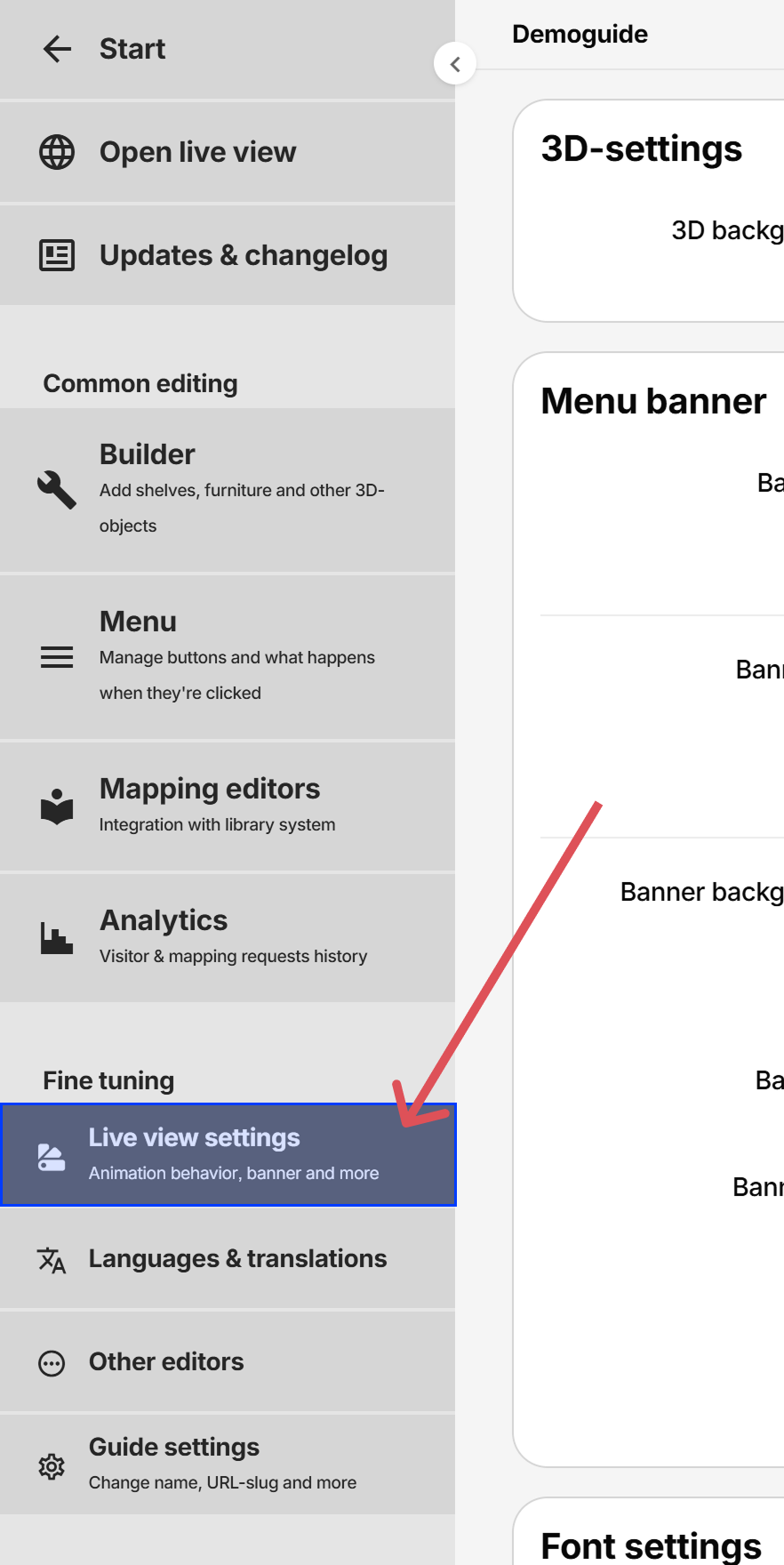
Customizations
3D-settings
Background color
Changes the background color of the 3D-element
Menu banner
Menu banner is optional and is displayed above the buttons:
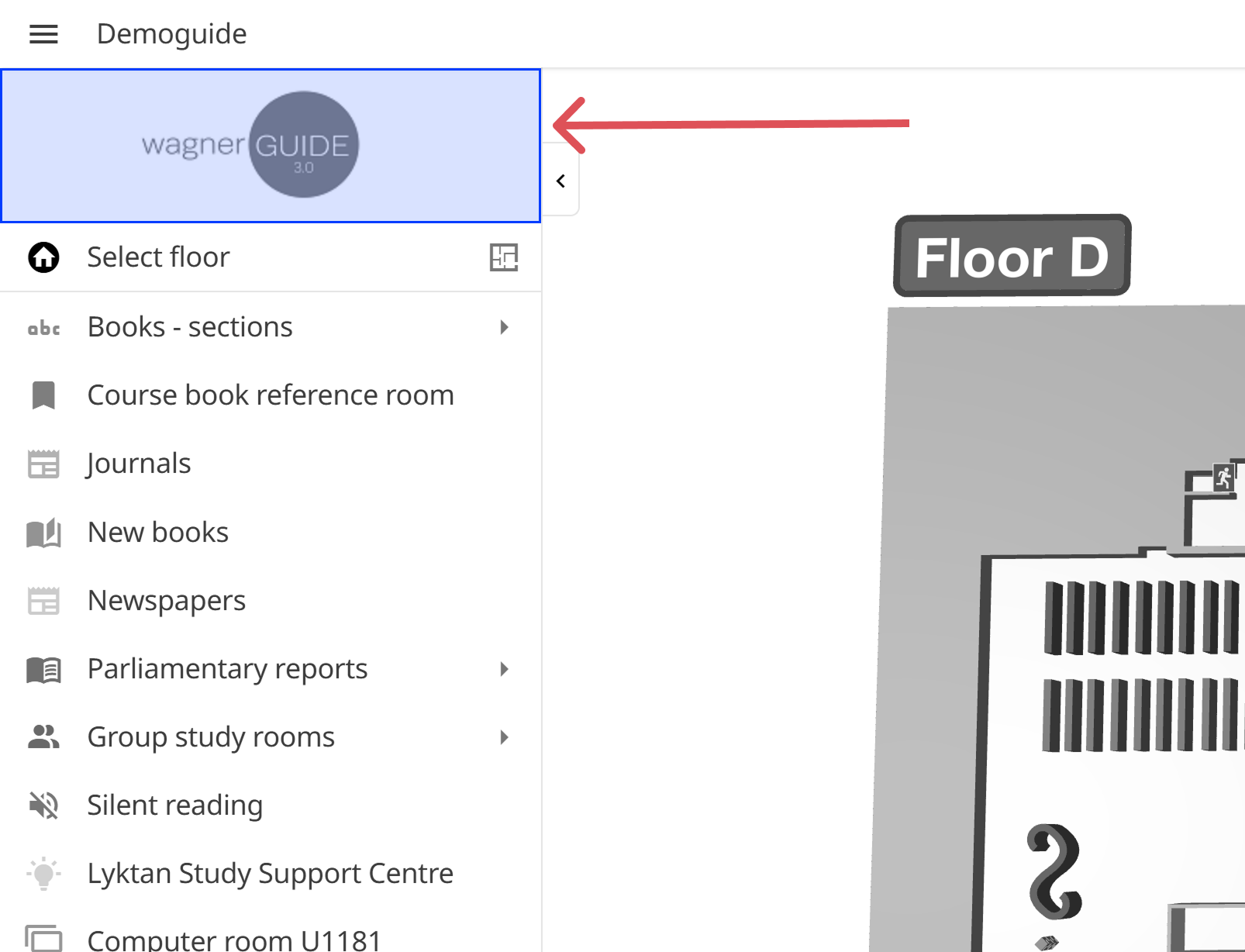
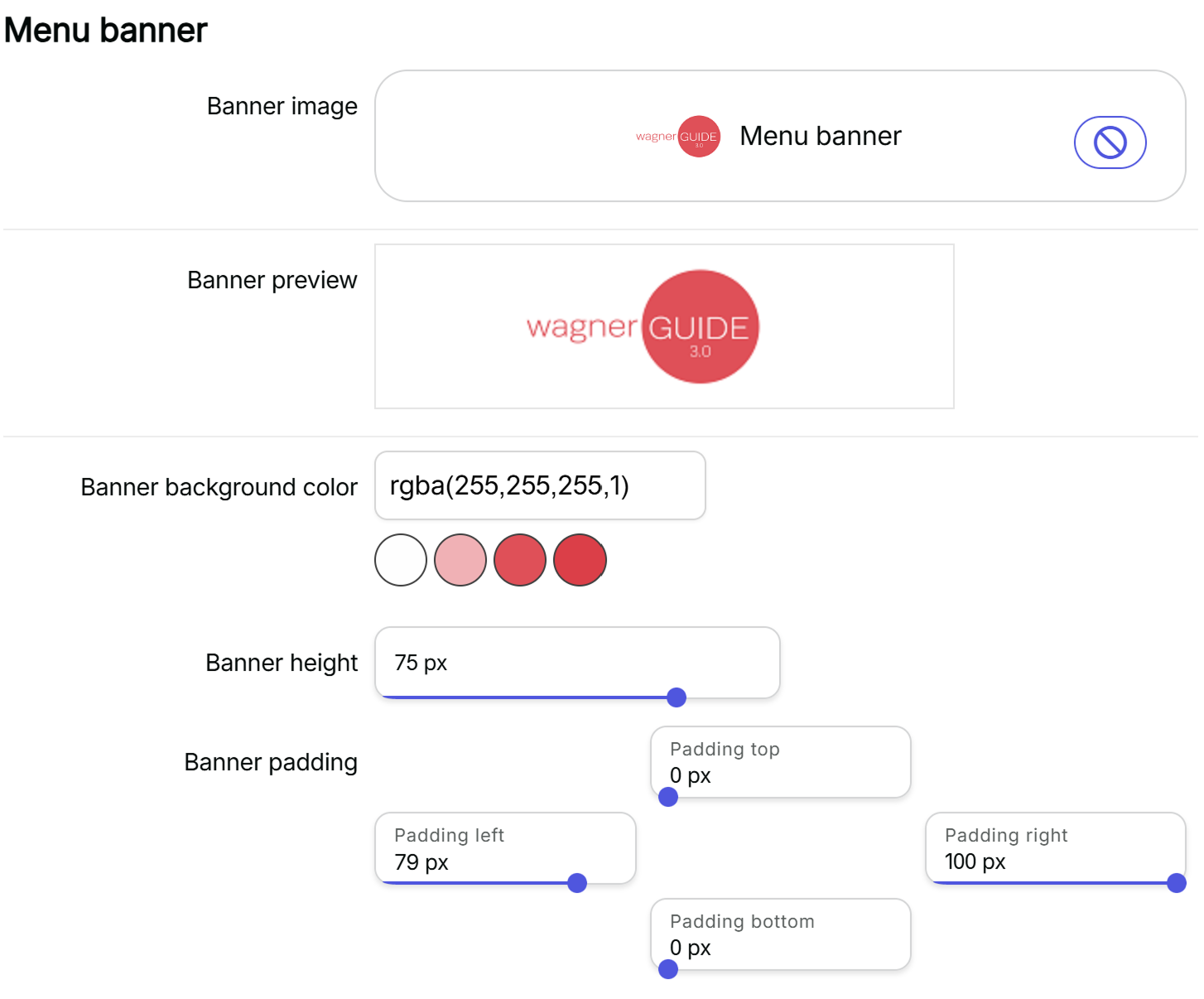
- Banner image - select or upload an image file
- Banner background color - Color behind the image
- Banner height - the size of the image within the container (the container size is fixed)
- Banner padding - space around the image within the container
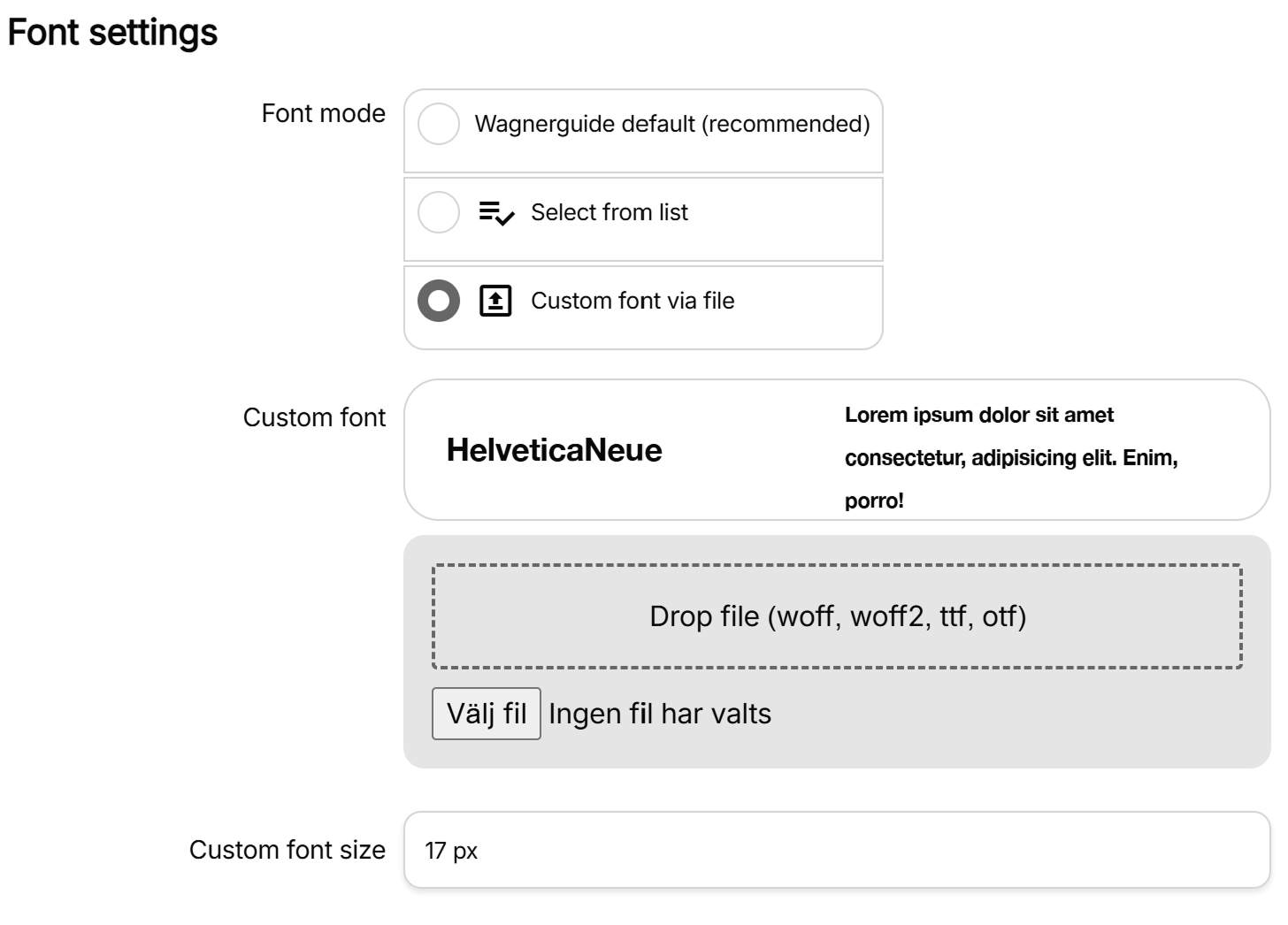
Font settings
Changing the font affects the rendered font on all normal elements such as buttons and text labels in the live view. It does not affect 3D-objects of type Text - they specify their own font.
Note: Changing the font or font size may cause elements to appear differently in the live view. If that happens, try another font or change the font size.
Available font settings
- Wagnerguide default - The current default font Wagnerguide liveview is tested against.
- Preset fonts - select a built in font from the list
- Custom font file - upload your own font files and set Custom font size
Animation settings & behavior
Affects the 3D-object highlight animations when menubuttons are clicked, or mappings are matched.
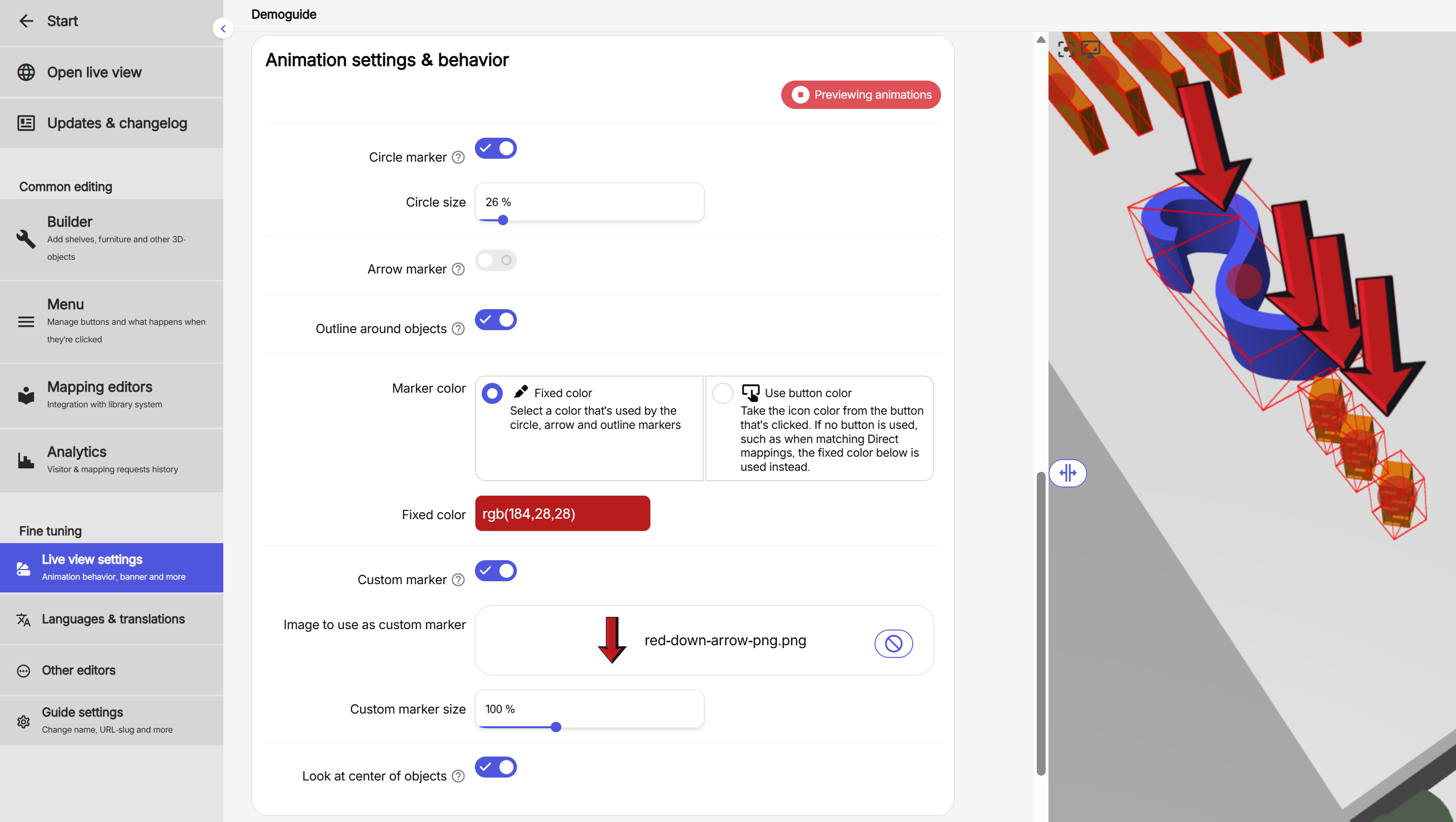
- Circle marker - enable/disable the pulsating circle
- Circle size - size of the pulsating circle
- Arrow marker - enable/disable the jumping arrow
- Arrow size - size of the jumping arrow
- Outline around objects - adds an outline around the selected objects
- Marker color - color of circle and arrow markers
- Custom marker - upload your own image file and use as a jumping marker (similar to how the Arrow marker is used).
PNG-images with transparent backgrounds works best
- Custom marker size - size of the custom image marker
- Look at center of objects - moves the camera target to the center of the highlighted object(s). Useful for bigger maps where the floor plan doens't fit in screen view.
UI-elements
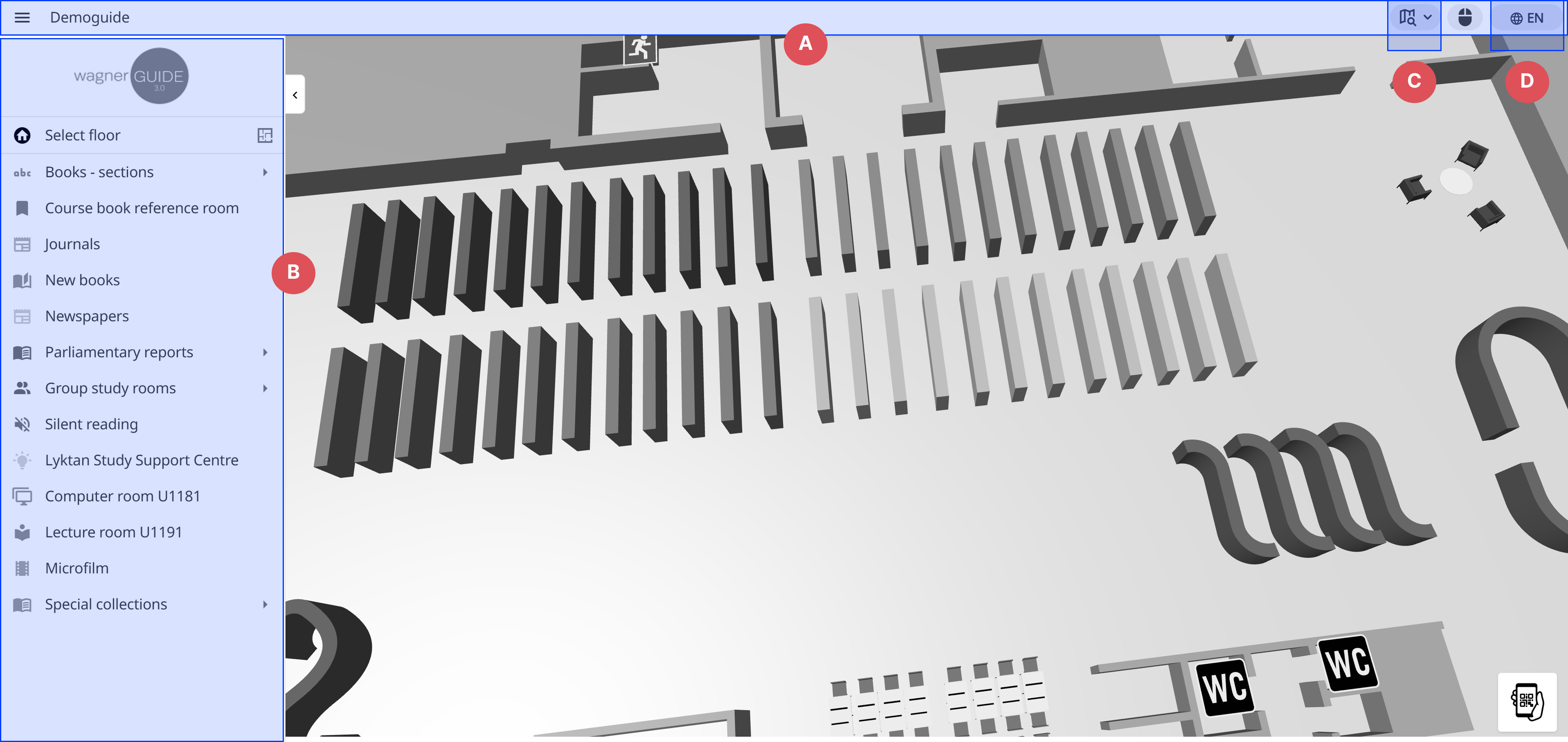
- Show nav bar: Show/hide the entire top bar
- Menu expanded by default: Have the menu toggled open or closed when guide is loaded
- Show search field: Show/hide the search button
- Show language menu: Show/hide the language menu