Catalogue Mappings
About
Catalogue mappings are used to match the incoming mapping request with corresponding shelves in the 3D map. They contain rules that target either the department, location, shelf or sublocation value in the incoming mapping request.
When matched, the 3D-objects selected under Animation will be highlighted, and additional information (text, mapping message) may be displayed.
We released Catalogue mappings as a successor to Direct mappings. They work similarly, but Catalogue mappings has better support for the different library classifications, and supports case sensitivy, truncation settings, and more. For new guides we recommend using Catalogue mappings.
Catalogue mappings list
The mappings can be found under Mapping editors in the side menu.
Depending on the active mapping set, the first tab might be Direct mappings instead.
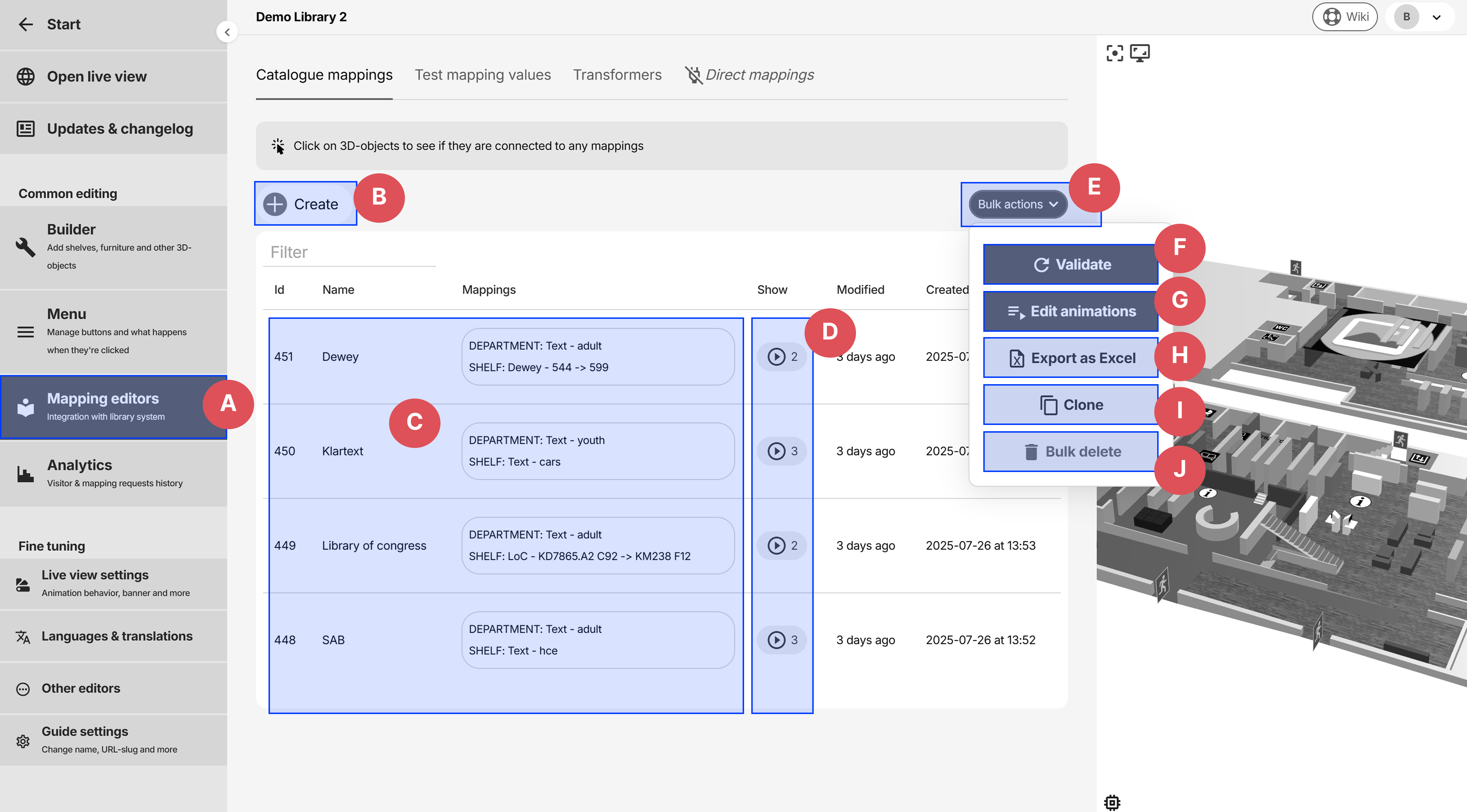
- A: Mapping editors in sidemenu
- B: Creating a new catalogue mapping
- C: List of existing Catalogue mappings. Clicking on a row enters the editing view.
- D: Click to preview the highlighted shelves in 3D
- E: Bulk actions popout
- F: Validates mappings that contains rules for strict classification types, such as Library of Congress
- G: Assign objects to multiple Catalogue mapping animations at the same time. See Bulk editing animations
- H: Export all mappings as an Excel file
- I: Select and clone existing mappings
- J: Bulk delete mappings
Catalogue mapping editing
Image 1/2
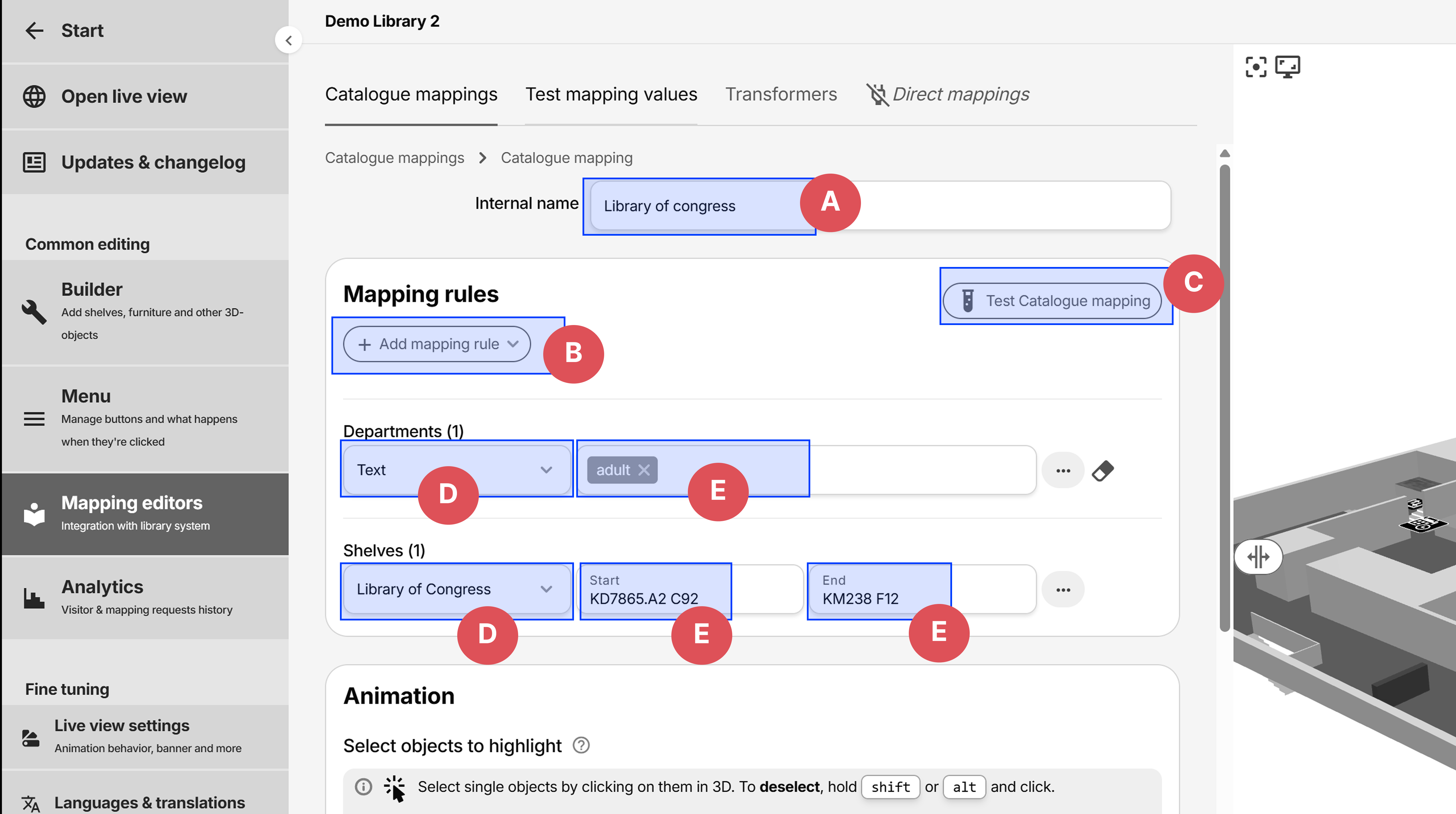
- A: Internal name or description, never used for matching purposes
- B: Add a new rule for either the department, location, shelf or sublocation value
- C: Test this Catalogue mapping against a combination of department/location/shelf/sublocation values to see if both the entire mapping succeeds or fails, and match status for specific rules.
- D: Changing the rule type affects visible fields (E). Rules of type Shelf contains more options like Dewey, Library of Congress, etc.
- E: Fields specific for the selected rule type (D)
Image 2/2
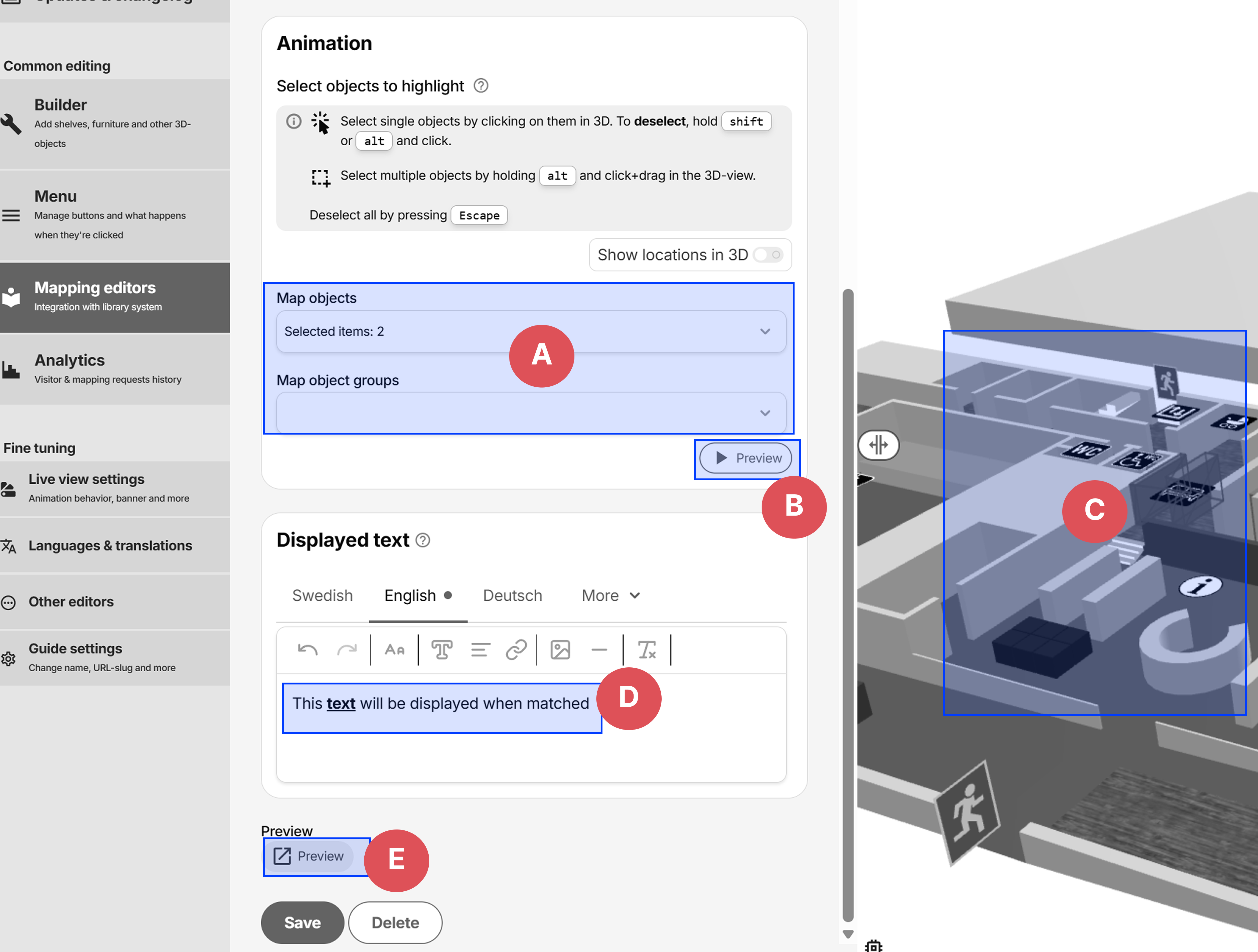
- A: Indicator for selected objects and groups
- B: Click Preview to preview the highlight animation in 3D
- C: Click on objects in the 3D-view to either assign or remove them from the animation
- D: More info - displayed in a popout window center middle when this mapping is matched in the live view. Can be translated by clicking the tabs, and can contain images, links and more.
- E: Opens a new tab that previews what it would look like when this mapping is matched with
When is a Catalogue mapping matched?
A Catalogue mapping is matched when it is deemed the best match to the incoming request values compared to all other Catalogue mappings.
Mapping rule types
Mapping rules can be seen as filters - the more rules a mapping has, the further restricted the range gets. For example, a mapping with a rule for department, and another for shelf, would allow any values of the remaining location and sublocation fields, since it doesn't specify any restrictions for those values.
Text
Suitable for simple text values that don't follow any range logic like most department, location & sublocation values, and SAB and Klartext shelf call numbers.
Example values: Hcf biographies 01 adult, youth*, b*sv
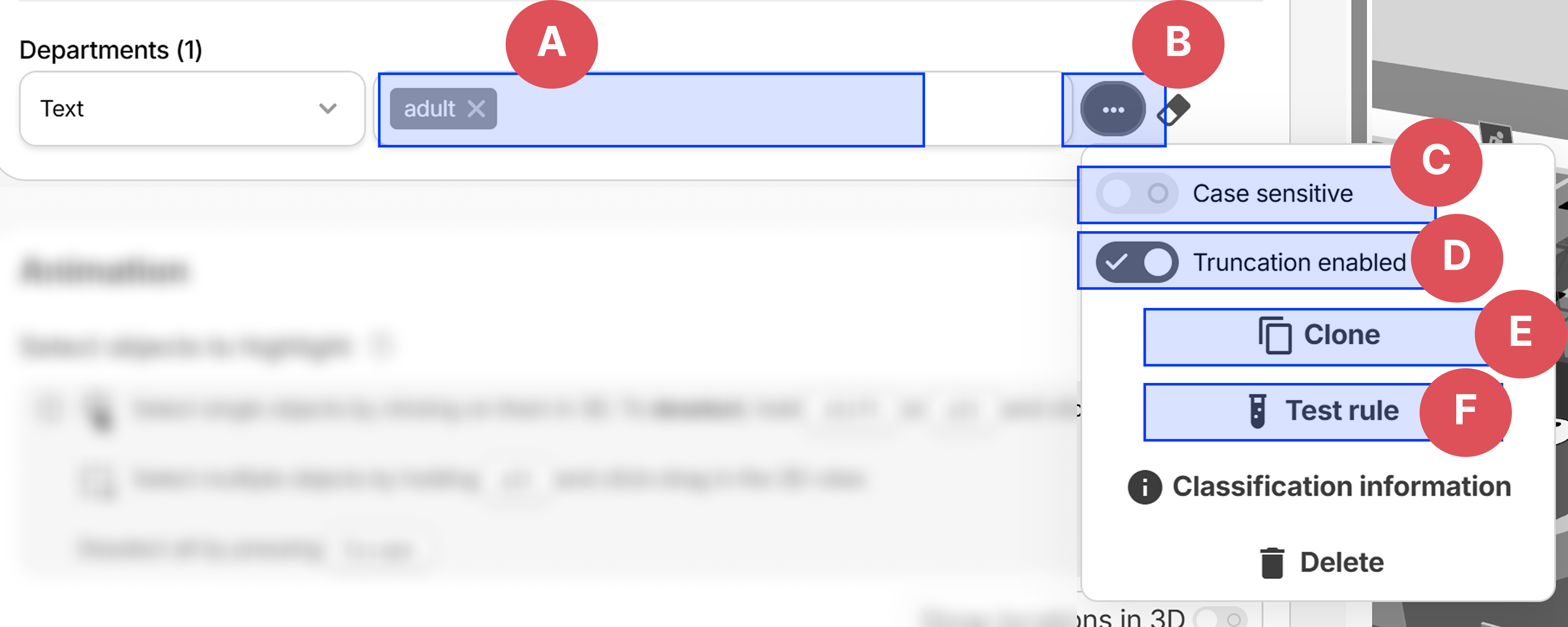
- A: The value to match against. CSV format and wildcards allowed.
- B: Opens the More options popout
- C: Turn case sensitivity on or off - meaning
ABCwith case sensitivity enabled wont matchabcorAbc - D: Truncation enabled on or off - meaning
adultwith truncation enabled would match withadult01andadult_section, but notadul(only the incoming value is truncated) - E: Clones this rule
- F: Tests this text rule against values
CSV format
CSV (comma separated values) allowed, like adult, youth, groundfloor.
Wildcards
Can contain wildcards to match with any character 0-to-many times. Meaning value a*c would match with the following: abc, ac, amnoprstu1094920c, and more.
Library of Congress
Matches with values within the range specified by Start and End. An alphanumerical comparison is then made to see if the incoming shelf value is within the range and cutters.
Examples: HV40 HD5708.55.U52.B376 P21

Format explanation:
In the following call number: HD5708.55.U52.B376 P21 there's:
- HD5708.55 = main class (HD, Economic history and conditions, industries, etc.) followed by main subclass (5708, number under HD), and further subclass .55.
- .U52 = first cutter, refines further within the main + sub class
- .B376 = second cutter, refines further within .U52
- P21 = third cutter, often used for author name or date
Cutters are optional to enter, a rule value of HD1234 would still match with HD1234.56.D78.
Dewey
Matches with values within the range specified by Start and End. Suffixes (CSV + wildcards) can be added to further restrict the including range. If no suffixes are assigned, the rule matches with any number within the range no matter the suffix of the incoming request value.
Example values: 301 450.1832 599.12 P
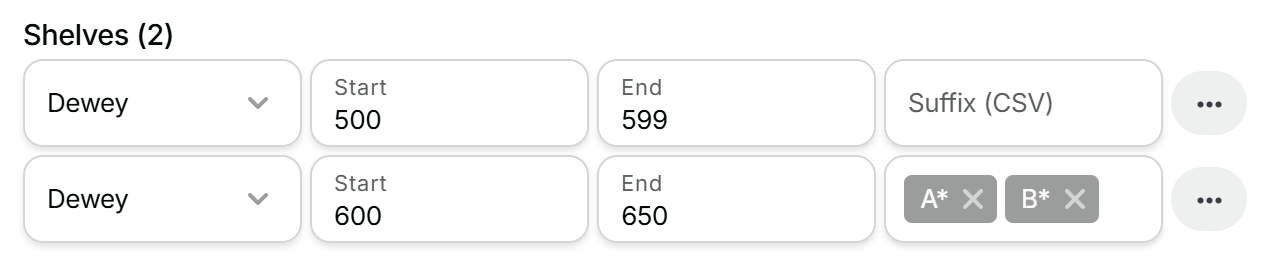 *Rule 1 would match with any shelf call number between 500 and 599, while rule 2 would only match with call numbers between 600 and 650 and a suffix starting with either A or B*
Gov publication
Custom implementation. Uses a two-digit country code as prefix, such as 42 for UK, followed by a number or letter-suffix within parentheses. Example values: 42 (3302) 42 (F3033) 42 (R20)
Matches with values within the range specified by Start and End.
Statistics
Custom implementation. Uses a main value (numbers and/or letters), followed by an HA-prefixed number within parentheses.
Example values: EC (HA155) 47RU (HA161) 52 (HA421)
Matches with values within the range specified by Start and End.
Highlight shelves via the Animation
When a catalogue mapping is matched, the objects assigned to its animation are highlighted in the 3D-view. To add an object to the animation, simply click the 3D-object to add, or hold alt and click to deselect. You may also hold shift to multi-select in the 3D-view, or click Esc to deselect all.
Bulk editing animations
You may add or remove objects from each Catalogue mapping animation in bulk via Bulk actions --> Edit animations:
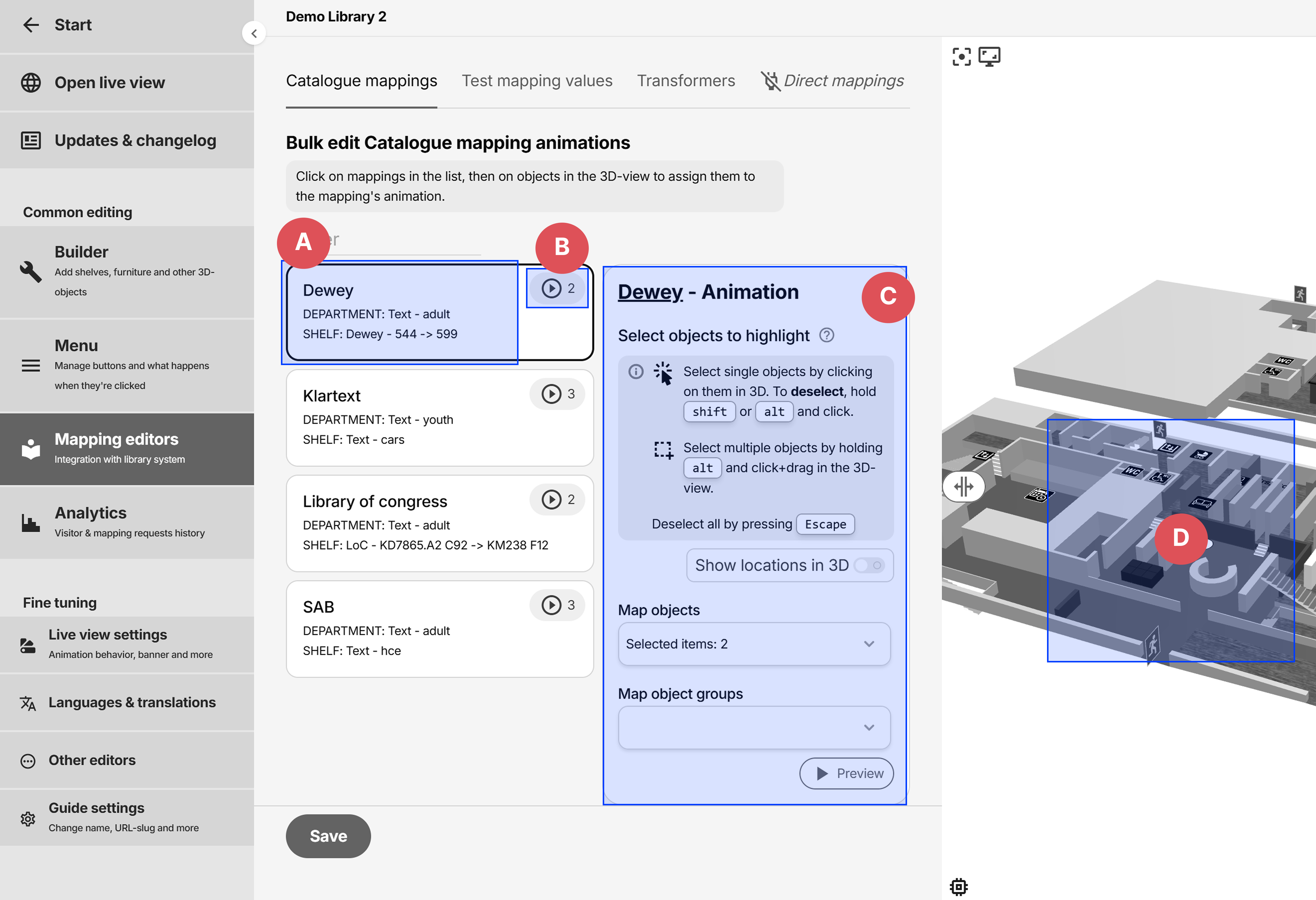
- A: List of existing Catalogue mappings, click on an item to bring up the animation window (C)
- B: Previews the animation in the 3D-view
- C: The animation for the active Catalogue mapping.
- D: Click on items in the 3D-view to assign while the animation window (C) is active to assign.