Menu
The menu is displayed next to the 3D view and contains buttons that can highlight objects, link to other sites, and more:
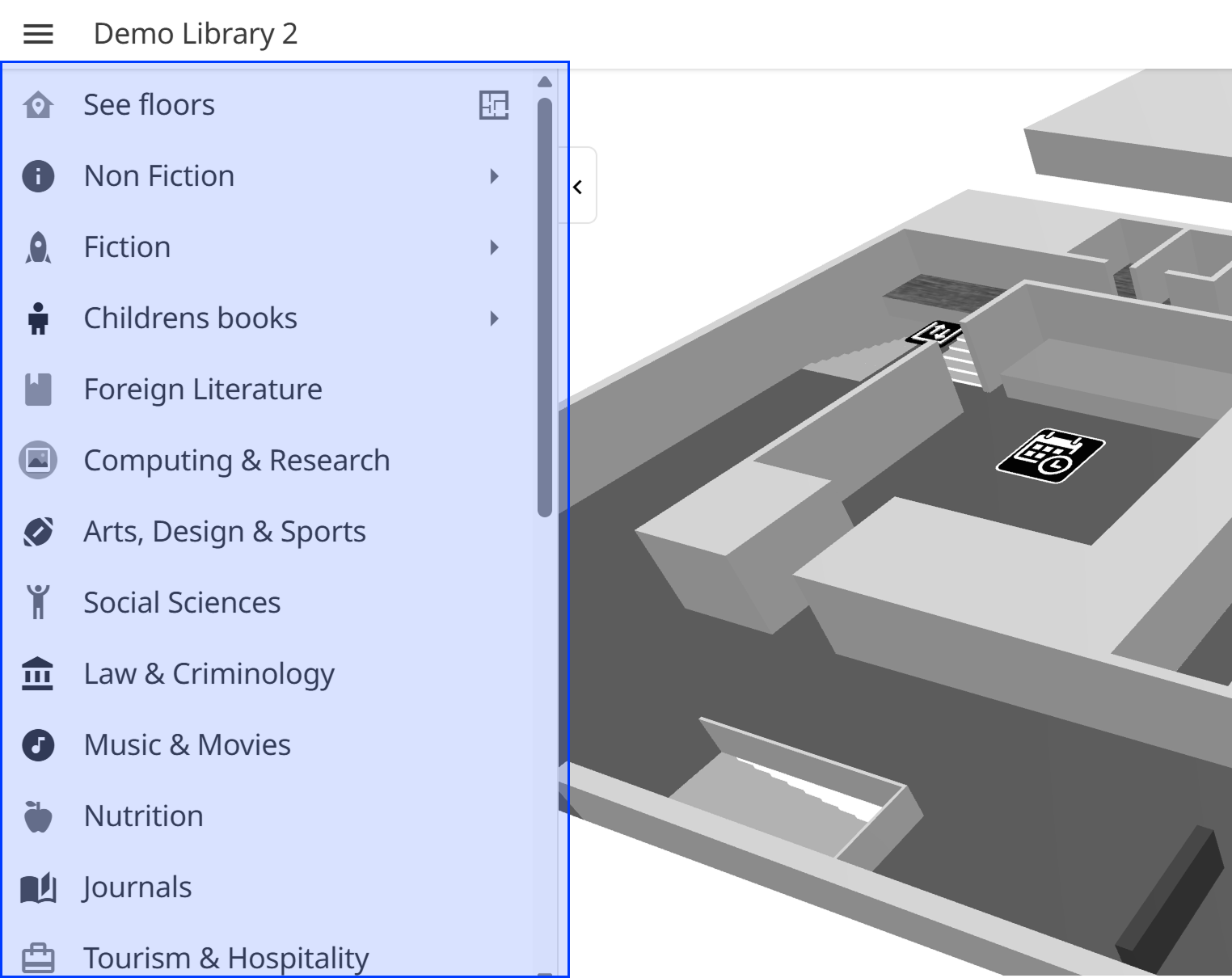
The menu banner can be set via Live view settings
Editor overview
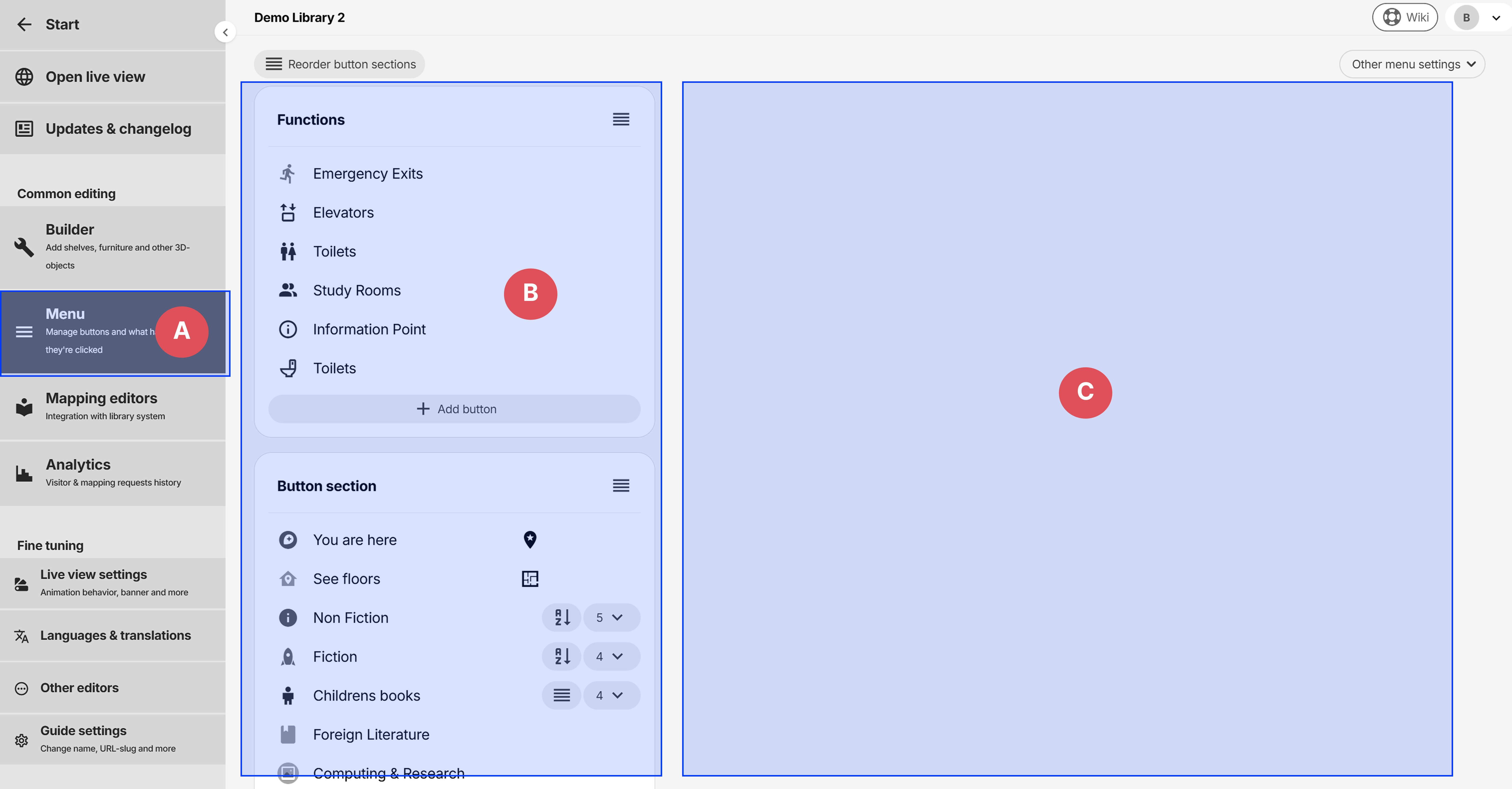
- A: Sidemenu button to enter the menu editor
- B: List of Button sections and Menu buttons.
- C: Click on a Button section or Menu button to edit, and it will be displayed here
Button sections
Button Sections acts as a container for Menu buttons. The image below shows the Menu editor when a button section has been clicked.
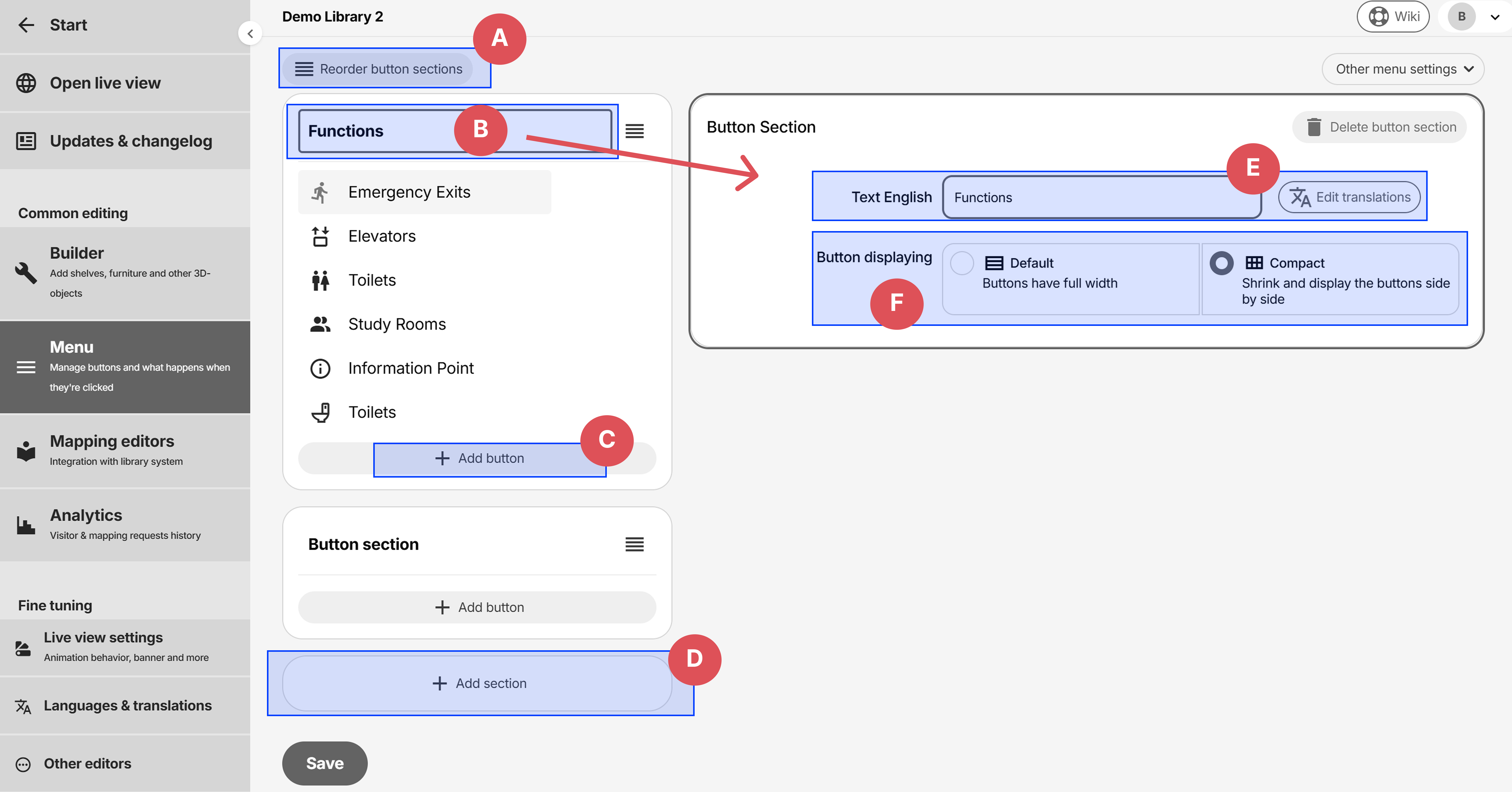
- A: Change the order of the sections.
- B: Clickable header to enter Edit mode
- C: Add new button inside section
- D: Add new section
- E: Section text - optional, can be left empty. Can be translated via Edit translations button or by Languages & translations in sidemenu
- F: Button display mode - changes how the buttons are displayed in the live view, either full width or compact. This does not affect how the buttons appear or are edited in the admin area.
Menu buttons
Either click on an existing button to edit, or Add button to create.
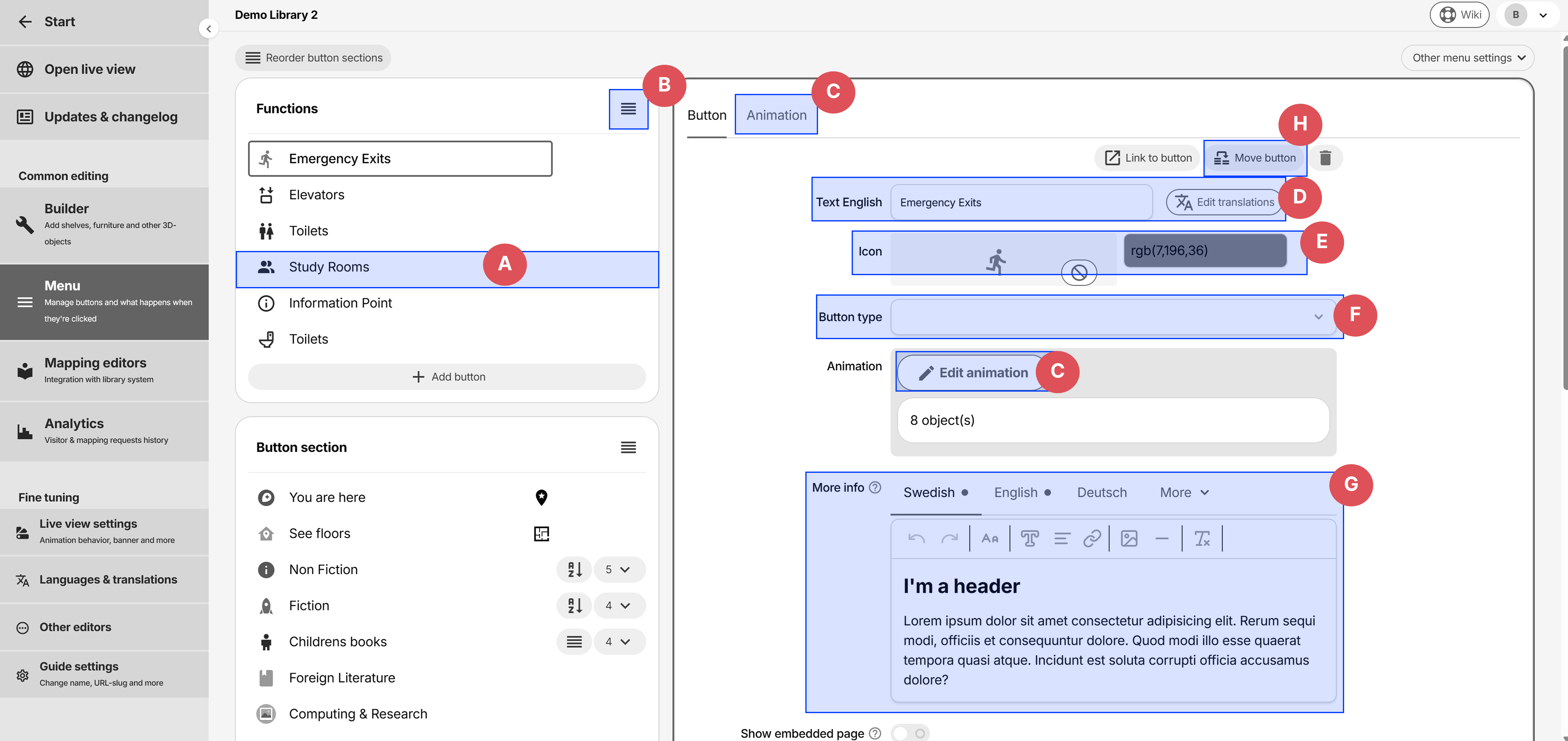
- A: Clickable header to enter Edit mode
- B: Change the order of the buttons
- C: Animation - set objects to highlight when clicked
- D: Button text - can be translated via Edit translations button or by Languages & translations in sidemenu
- E: Button icon - either select one from the library or upload your own image file (png, gif, jpeg, etc)
- F: Button type - used to add extra functionality to the button, such as submenu, link, and more.
- G: More info - displayed in a popout window center middle when clicked in the live view. Can be translated by clicking the tabs, and can contain images, links and more.
- H: Move button to another button section or parent submenu
Submenu
Use submenus to display buttons inside another button.
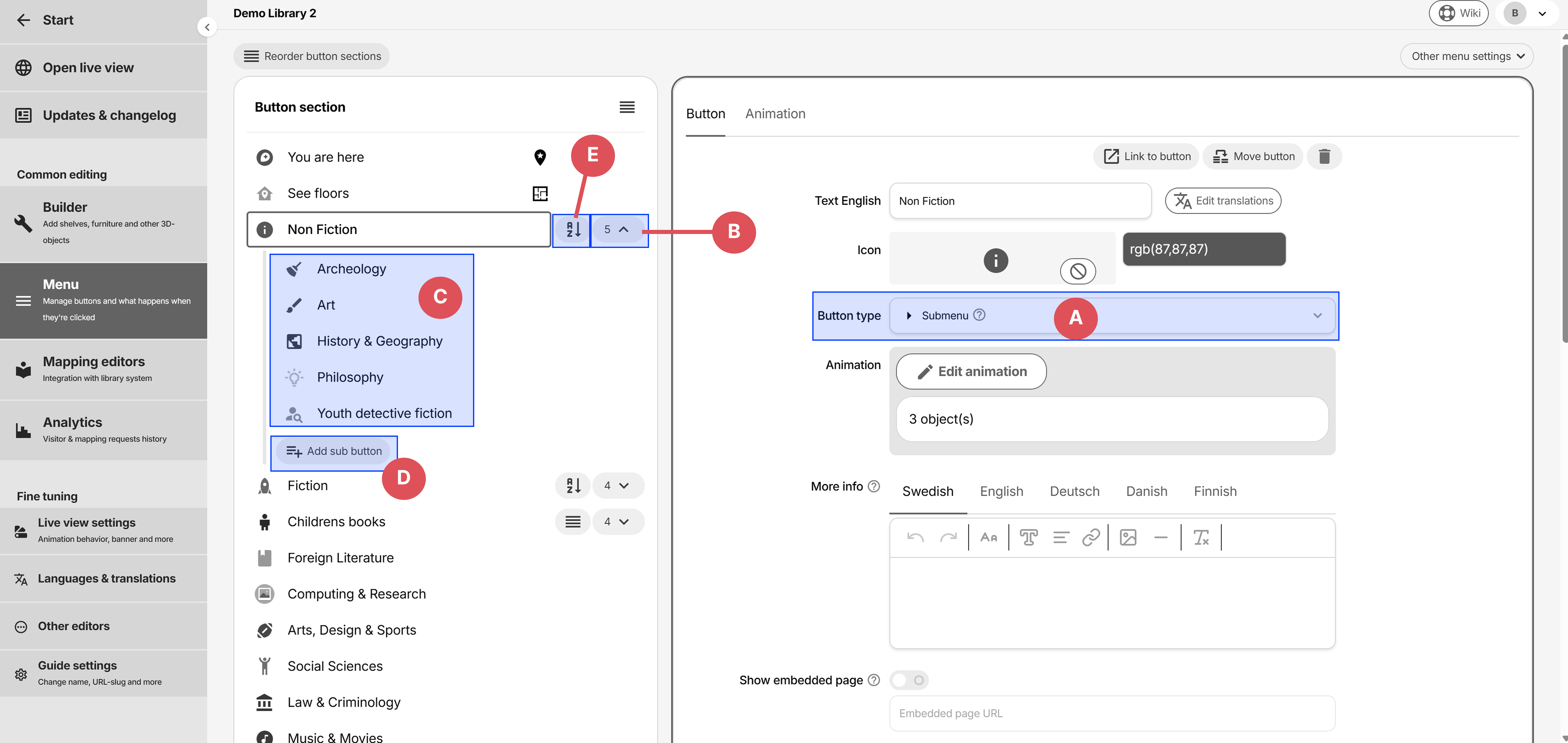
- A: Set the Button type to Submenu on the parent button that should contain other submenu buttons
- B: Expand the submenu buttons inside a parent button
- C: Submenu buttons inside the parent button
- D: Add another submenu button inside the parent button
- E: Change the order of the submenu buttons. If alphabetically is used, it automatically reorders the buttons by their Text in the active liveview language.
Link
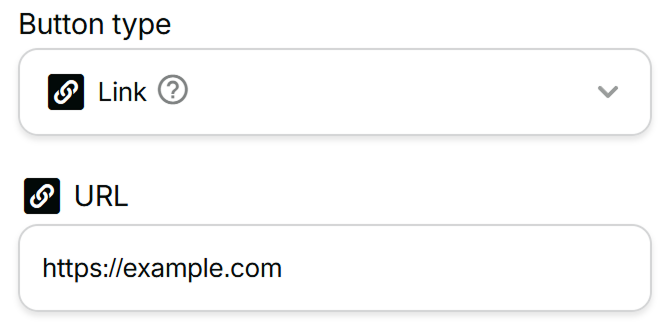
Set the Button type to Link and populate the URL-field. A new tab is opened when the button is clicked.
Map file selector
Automatically lists all map files (floor plans) within the guide, and lets the user navigate to each floor.
Wagnerguide switches between floor plans automatically when using animations.
Waypoint displayer
Only display this button when a Waypoint is set. If none is found, this button will be hidden.
Animation - Highlighting objects
Highlighting shelves, furniture and other 3D-objects when the button is clicked in the liveview is done via the Animation (see option C from previous section to enter Animation mode).
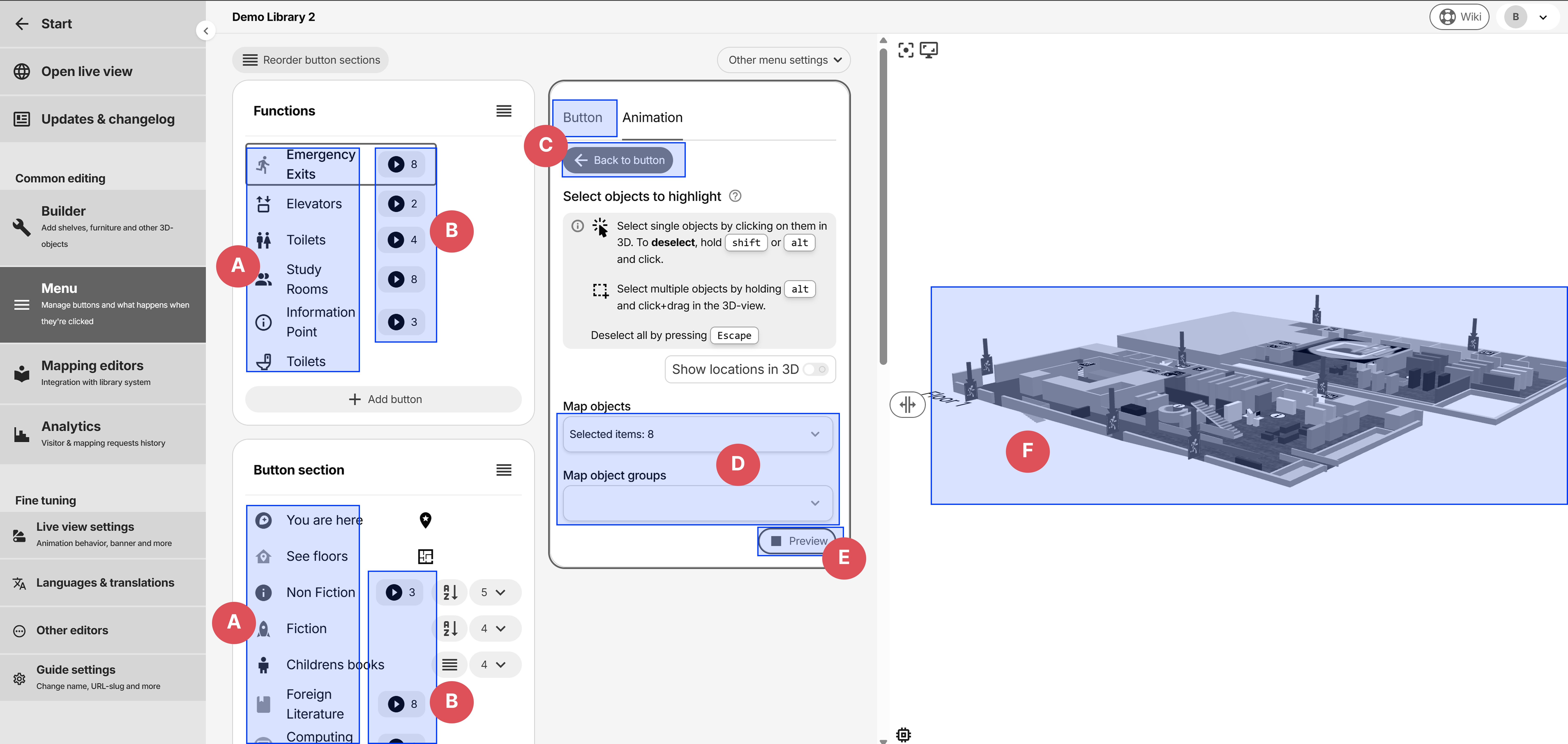
- A: Click on other buttons while the Animation editor is active to change their highlighted objects.
- B: Indicator for how many objects each button is highlighting. These indicators are only displayed while the Animation editor is active.
- C: Exits the Animation editor and goes back to button editing
- D: Indicator for selected objects and groups
- E: Click Preview to preview the highlight animation in 3D
- F: Click on objects in the 3D-view to either assign or remove them from the animation