Modifying the floor plans
The floor plans are created by us and the 3D-structure cannot be modified in the admin area. You may, however, change the colors of any built in geometry, such as walls, floors and other static objects.
Colors of individual shelves and furniture are still edited in the Builder.
Requesting a floor plan change
Common requests are:
- Add, remove or change walls, rooms or areas
- Make areas into separate geometries so they can be recolored independently
- Add more floor plans
Contact us for these types of inquiries at contact@wagnerwayfinder.com
Change color of walls and floors
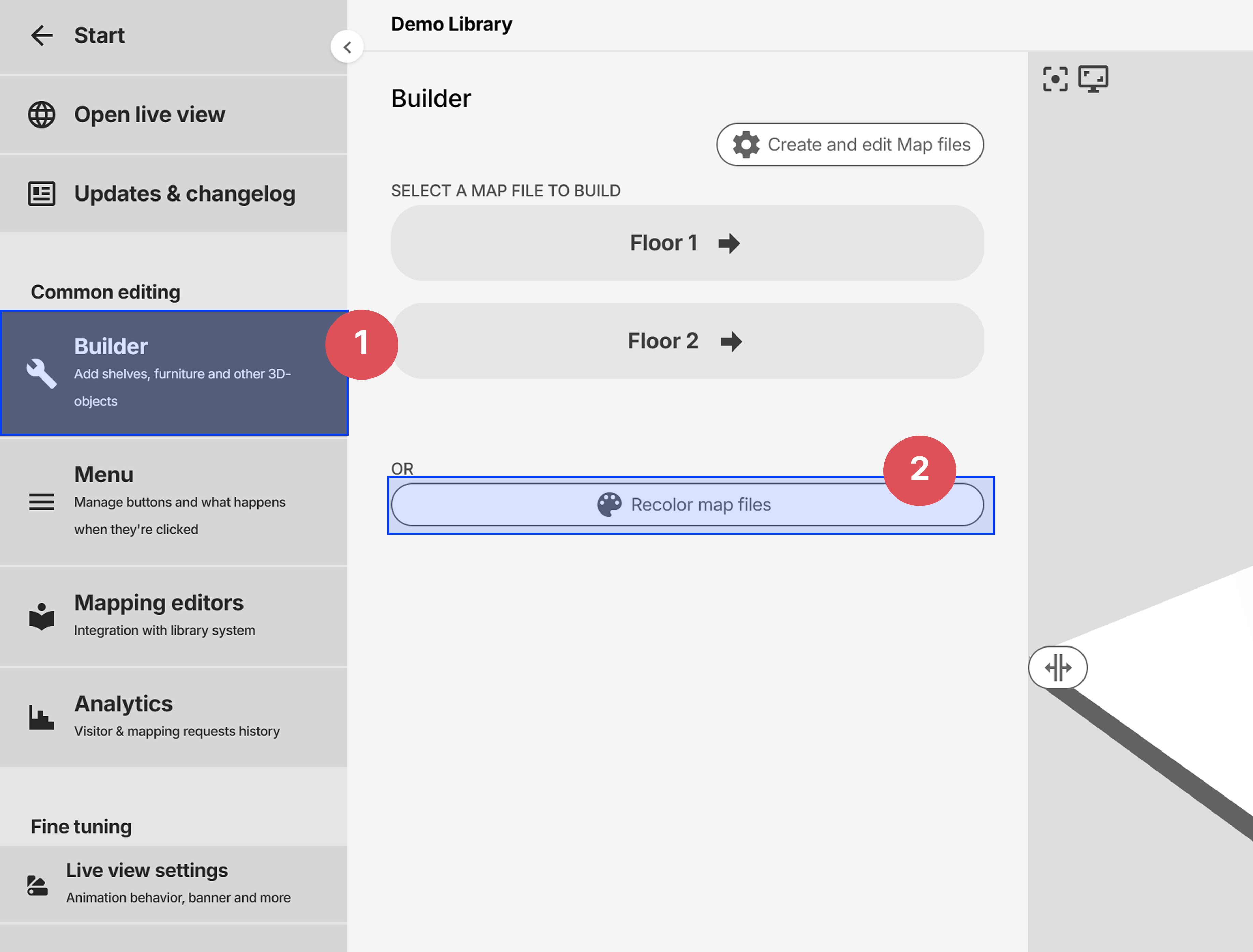
Entering the recolor editor under Builder -> Recolor map files:
Color replacement editor
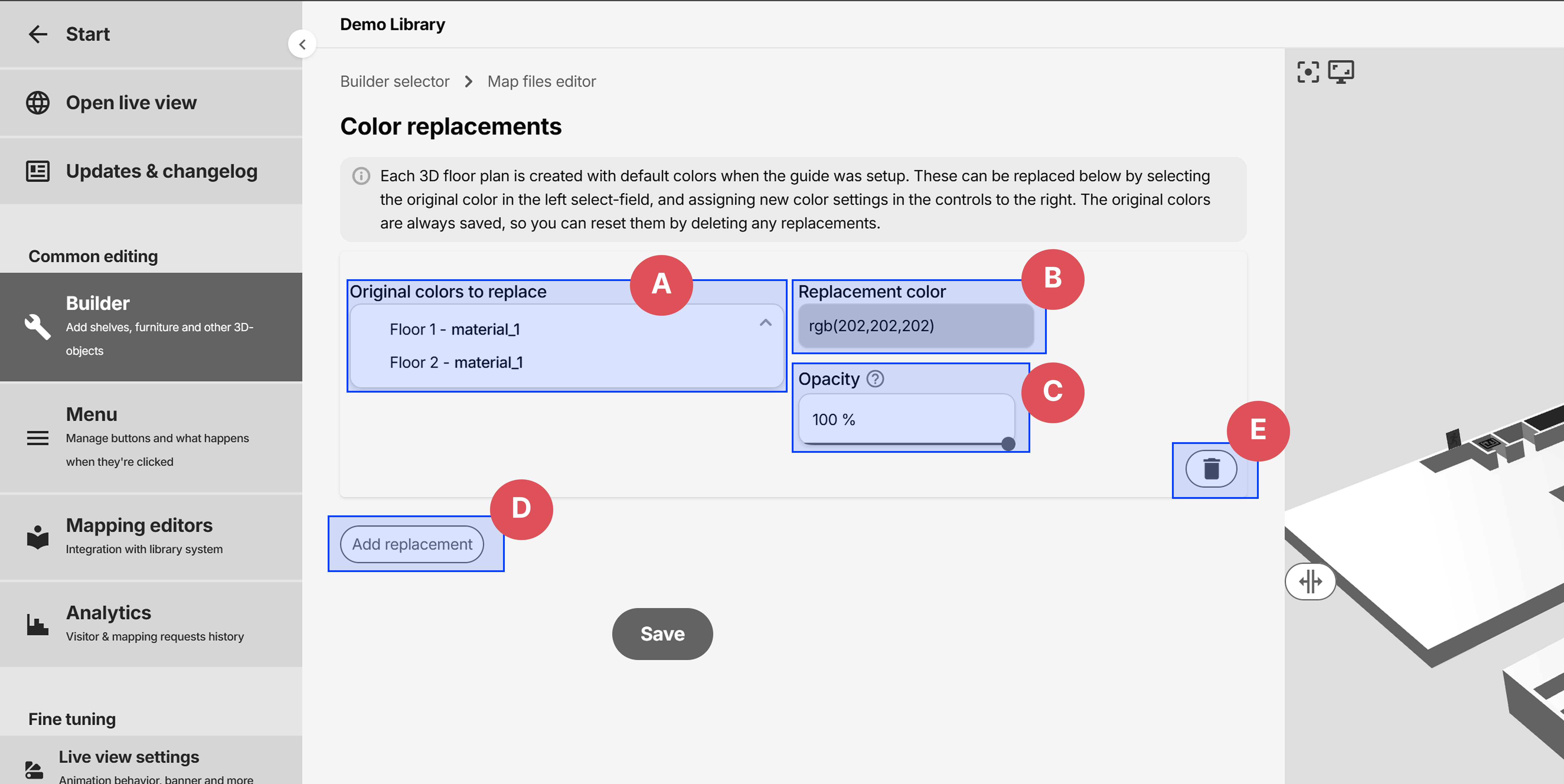
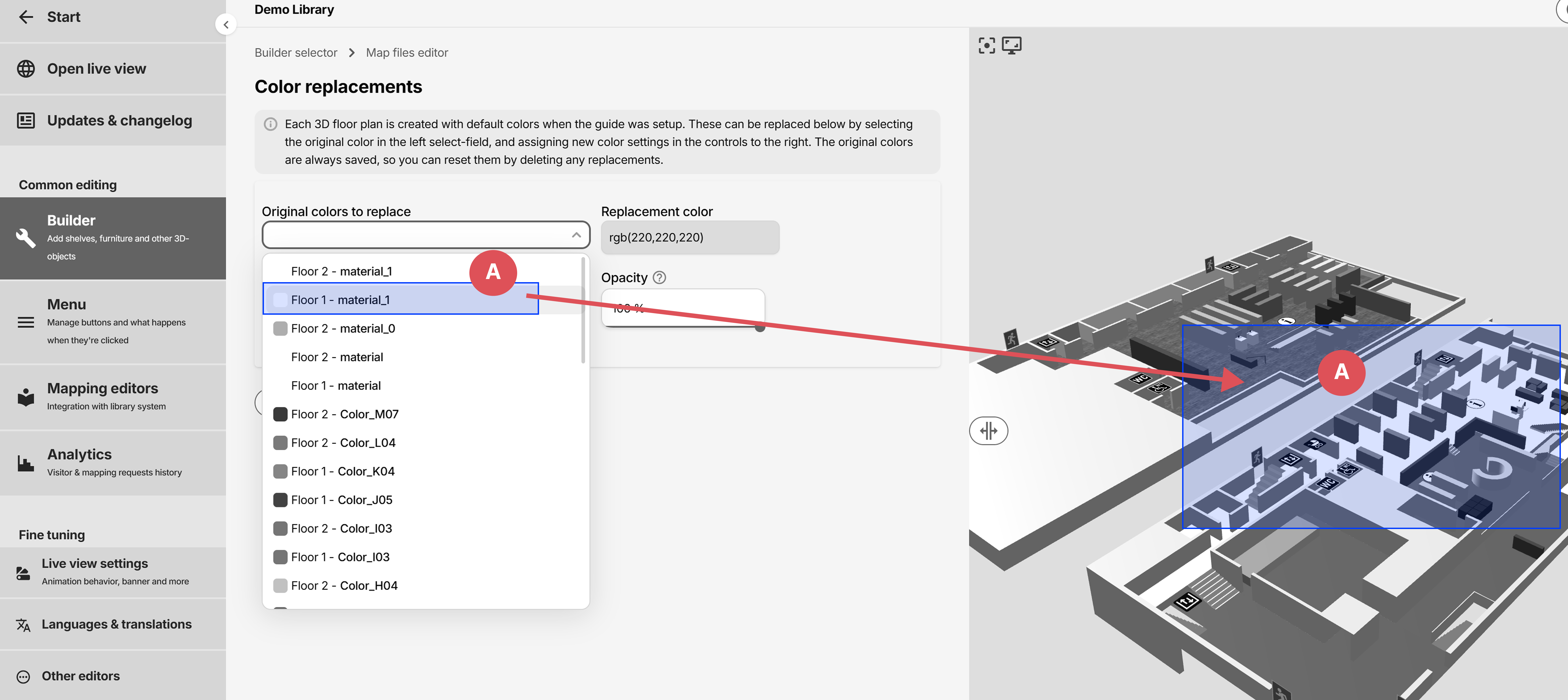
- A: The built in colors to replace. Multiple colors can be selected. The color will be highlighted in 3D when hovered (see next image)
- B: Replacement color
- C: Opacity of replacement color. 100% means no see-through. Can be set to lower to create see-through areas, such as glass and windows.
- D: Add a new replacement
- E: Remove replacement. Original colors are always saved in the floor plans, so removing a replacement will just reset color.
The color will be highlighted in 3D when hovered: